Transfer Rules: File Filter Options and Folder Synchronization
With Auto FTP Manager, you can not only transfer files between your PC and the server but also automatically synchronize the two so that they are always identical. With the advanced filtering options, you get even more control over exactly which files have to be transferred.
In Automated Transfer profiles, Filters can be set to restrict or allow the transfer of different files. When creating a new automated profile, you need to first specify the FTP connection details. Once the details are specified, set the transfer rules for applying filters and synchronization. For an existing automated profile, right click on it and select Edit Profile > Transfer Rules. In both the cases click Configure to set the Filters.
By Modification Date
Auto FTP Manager can decide whether to transfer files depending on their modification date. For instance, you can set up an Automated Transfer Profile to copy all files from an FTP server to your PC that have changed within, say, the last three days. One use of this feature is to archive old files. The example below shows settings that would download all files that have not been modified in the last 180 days to the archive folder on your PC, then delete them from the server.

The Action Rules settings in the Edit Profile Properties window say "Transfer files from the server exampleco.com to the MyCoArchive file on my PC, then delete them from the server." The Modification Date filtering in the lower window says, "Don't move or delete any files that have been changed in the last 180 days." Taken together, they mean "Copy all files that have not been changed in the past 180 days from the server to the archive folder, then delete them from the server." Since Auto FTP Manager can include subfolders in its transfers, you can use this simple Automated Transfer Profile to archive an entire server. Combine this with the ability to schedule a profile and you can create a job that runs over the weekend when nobody is using the server or Internet connection. It automatically saves all unused files to the archive folder on your PC and frees up the space they were using on server by deleting them once they are transferred.
The modification date filter can be used in an opposite way. For instance, if you need to download a log file from the server every day, but not all past logs, you could check the "Transfer files from the server exampleco.com to the MyCoArchive" option and set the filter to "I would like to Include files that have changed in the last 1 day". You must keep the "Delete File After Transfer" option unchecked if you do not want the file to be deleted from the server after transfer. This can be very helpful for an administrator whose job it is to check several log files from a server (or multiple servers) every day. You can have them waiting on your PC when you arrive in the morning, read through them and then delete them from your PC.
File Size
Auto FTP Manager can transfer files based on their size. Suppose one of your branch offices has a slow DSL Internet connection. You want them kept up-to-date on documents, but you also don't want to tie up their one communication line for a full hour downloading gigantic files during business hours—but you do want those files transferred after hours, when the line is available. With Auto FTP Manager, you can just set up two Scheduled Profiles. One would have a filter like this:

This profile could be scheduled to run hourly during the day. Another would be run once every day at 1:00 am and include all files. This would transfer the large files (along with any new smaller ones) during a low-traffic period.
File Name
You can add files for transfer by matching their names. Add the files that begin with, end in, or contain specific characters. Specify these characters in the text box. If you select beginning with, the filter will match files whose names start with the contents of the File Name. For instance, if you chose to Include files beginning with Set, files name "setting sun.doc" and "Seth Brosky's Birthday Party.avi" would be transferred, but "Seriously Cool Guitar Solo.mp3" would not.

File Type
With the File Type filter, you can choose to transfer only certain file types. For instance, you could choose to upload Microsoft Word documents, but not Word's backup files. Just type wbk in the Enter file extensions area, make sure the selector above it reads "Exclude", and press the Add button. Let's say you also don't want to upload CorelDRAW backup files, which have the extension .abk. After adding that, your File Type filter would look like this:
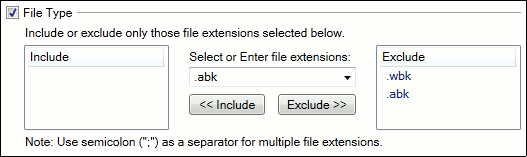
This filter can be read as, "Transfer all the files you find in the folder except the ones whose file names end in .wbk or .abk."
The Include filter is useful if you have files of several different types, and you don't need to transfer all of them. For instance, you might be working on a project where sharing .doc (Word document) and .ppt (Microsoft PowerPoint) files is important, but there are a lot of other files on your computer that your project team doesn't care about. You could easily create a filter with the rule "Include .doc; Include .ppt". Auto FTP Manager will ignore every other file.
You'll have to think about whether to use Include or Exclude. Generally, if you know that only one or two file types matter, use Include. If you're deliberately leaving one kind of file out (like backup files), Exclude works better.
Put It Together
Of course, you can combine all of Auto FTP Manager's filtering capabilities to create more specific rules. For instance, the example for File Size involves transferring large files once per night. It would be easy to combine that with a File Type filter to transfer only large PowerPoint and Word files, while leaving behind all others. You can combine the Advanced Filters with Auto FTP Manager's Conflict Resolution and Schedule systems. It would take only a few seconds to create an Automated Transfer Profile that can do this: "Every day at 1:30 pm, transfer only Adobe PhotoShop files that are less than 10 megabytes in size from the project folder on my computer to the project folder on the server. If a file with the same name is already on the server, then transfer the file only if the one on my computer is newer."
Auto FTP Manager's powerful file filtering system lets you use transfer files you actually need moved, without having to manually make a selection every time.