Record File Transfer Actions
Webmasters need to upload their modified files all the time to the web server. Performing these transfers manually for a large number of files and folders is unreliable. Auto FTP Manager allows you to record your every file transfer activity and save it as an Automated Profile. Run this profile at any point and repeat the recorded actions automatically.
You can create a schedule for this profile to automatically carry out the recorded actions at a specified time. This way you can avoid manually performing tasks like deleting, moving and renaming files at regular intervals.
How to Record File Transfer Actions?
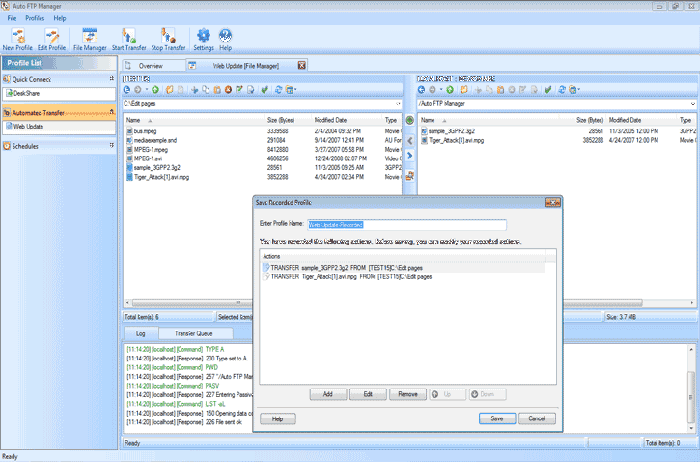
Recording the transfer actions is supported by both the profiles: Quick Connect as well as Automated.
Quick Connect Profile enables you to transfer files manually. Files are transferred automatically in Automated Profile with the help of certain transfer rules.
The local and the remote folders are displayed in separate panels in File Manager. Click the green record button before starting the transfer actions. Once the recording
starts, you can perform numerous actions like transferring files between PC and the server, Delete, rename, move files etc. Stop the recording by clicking the same button and save the profile.
This profile appears in the Automated Transfer Profile list.
There are various additional actions that you can perform on the recorded profile. Right-click on the profile and select Edit Profile >> Transfer Actions.
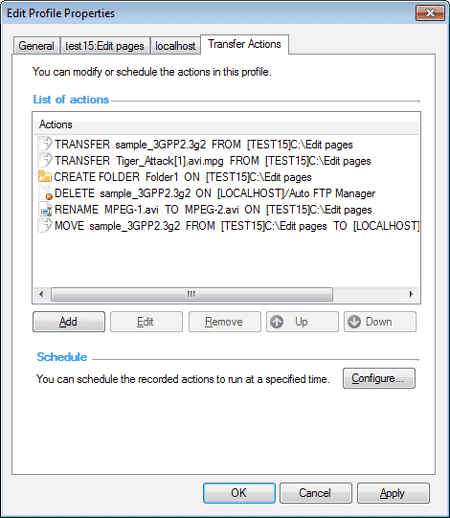
A list of the recorded actions appears that can be modified as required. With the Add button you can include more actions such as transfer, delete, move, rename, and create a folder. You can also edit and remove a selected action.
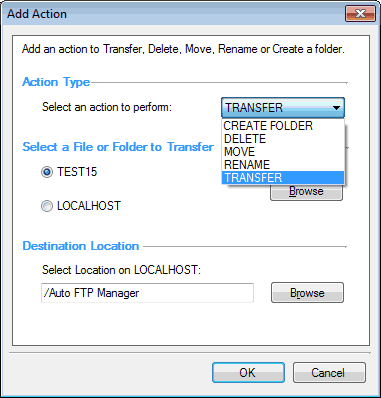
Set a Schedule with Configure button to perform the recorded actions automatically at a specific time. To manually run the recorded tasks, right click the profile and select Start Automated Transfer.
Now that we have seen how to use the record feature in Auto FTP Manager, you can easily see its benefits. You do not need to go through the entire process of creating a profile by specifying the folders between which the transfer would take place. There is no need to specify FTP connection and other details. Actions that you perform repeatedly/regularly get executed automatically when you run the profile. What’s more, you can take the automation to the next level by scheduling the recorded profile so that it independently performs the exact tasks you want at the exact time.