Quickly Setup Your Security Configuration
WebCam Monitor is designed to make setting up your video monitoring system easy and effective. A typical security configuration can require choosing among dozens of settings, but WebCam Monitor gets you started quickly by providing pre-created monitoring scenarios. Software setup can take as little as one minute using this method.
You can use the Quick Access as soon as you start WebCam Monitor. If this is the first time you’ve run WebCam Monitor, you’ll be asked to use the Add Webcam to add at least one camera. Go ahead and add all the cameras you plan to use at this point.
With Quick Access, you can easily and quickly configure the monitoring actions for the selected Webcam. You just need to select and configure the actions as required and start monitoring. You can select different actions to be performed for different cameras. The actions are “pre-defined groups of settings”. By choosing actions, you configure the program for a particular situation in just one step. The five actions that can be performed on monitoring in WebCam Monitor are:
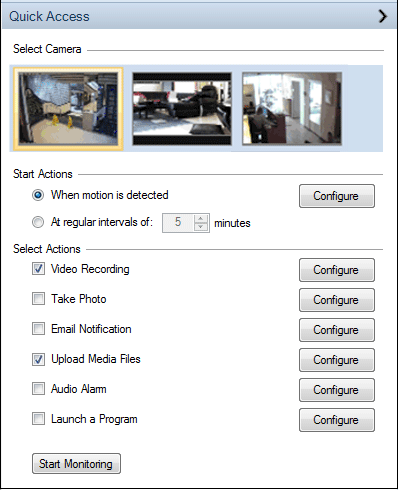
Record when motion is detected or At regular interval
This action is intended to record the video images of the camera when motion is detected or At regular interval and save it in WMV format. With this action, WebCam Monitor gathers an evidence (and optionally alerts you and sounds the alarm) if intruders are detected.
Video recording is turned on when motion is detected. You can also configure periodic triggering (“record every five minutes”). You can configure video recording settings by clicking on Configure button and set video quality, video duration.
Take photo on motion detection or At regular interval
This action captures a sequence of photos on motion detection or At regular interval and saves it in JPEG format. You can configure photo settings by clicking Configure button. You can configure how many photos should be taken at given time interval and image quality.
E-mail me when motion is detected or At regular interval
This action is similar to “Record when motion occurs”, except that instead of turning on video/audio recording, it automatically sends e-mail.
You’ll be asked for one or more addresses to notify by e-mail, and what address the mail sent should come from. Note: if your Internet Service Provider (ISP) blocks outgoing e-mail from your account (as some do, especially cable modem providers), you’ll need to configure an Outgoing mail server.
Upload media files to my FTP account on motion detection or At regular interval
This action is used when a record of events is needed. The program takes still pictures (JPEG snaps) and videos regularly and saves them on a server, which can be anywhere. This creates permanent, hard-to-destroy documentation of events at the locations covered by the camera. It is also a good way to view upload images continuously on your website.
Either Video recording or Take photo should be turned on to upload files on FTP server.
If you pick this action, you’ll be asked to configure the name or IP address of your FTP account, along with a user name and password.
Audio alarm when motion is detected
This action is intended for a standard burglar alarm-style situation, in which the program alerts you and sounds the alarm, if motion is detected. The Audio Alarm action plays an audio file, whenever an alert is triggered. You can configure Alarm settings like audio file, time to play audio alarm , volume by clicking on Configure button.
Launch Program when motion is detected
The Launch Program action lets you extend WebCam Monitor to meet a specific requirement. You can run any program or a script when WebCam Monitor detects a motion, which lets you to perform any action that you can program the computer to handle. You can also send parameters to the program that you want to launch. You can configure Launch program settings by clicking on the Configure button.
In general, you can select multiple actions. However, you can certainly combine these actions together. For instance, “Record when motion is detected” with “View my camera remotely from another PC.” You could even combine both with “E-mail me when motion is detected.”
Using the Quick Access, you can activate a complete surveillance setup only seconds after installing WebCam Monitor.