Add Filters to the Files
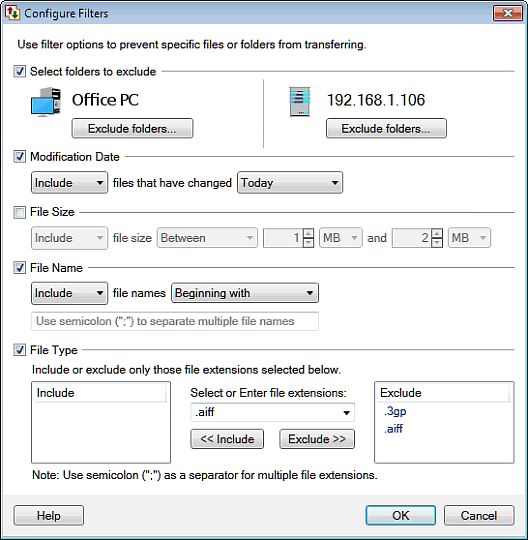
With Filters, you can choose to either transfer only certain file types (for instance, Microsoft Word .doc files), or send everything except certain file types (for instance, you can choose not to transfer Word backup [.wbk] files). By default, all file types are included in automated file transfer. With the filters option you can specify folders which you do not want to included in the transfer also you can decide whether files of the particular size or modification date should be included in the transfer or not. Additionally, you can use the wildcard character "*" to select files based on patterns in their names. The five type of filters you can set for files during automated transfer are Select folders to exclude, Modification Date, File Size, File Name and File Type.
To add Filters in your Automated Transfer Profile, Check the File and Folder Filters and Configure it from Automated Rules settings.
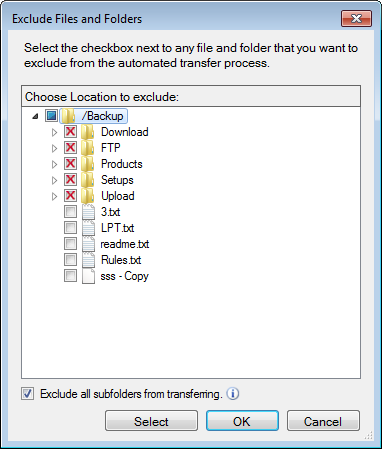
Select folders to exclude
Sometimes you may want to exclude specific file or folder from the transfer. With Select folders to exclude option choose files and folders which you do not want to include in the transfer process. Excluded items are not transferred unless you remove them from the excluded items list. Exclude all existing and newly created subfolders to transfer only files from Home Folder. This option is provided for both source and destination location, helping you to transfer specific files.
Modification Date
If you enable this option, you can filter files which are recently modified or which are older than a day, an hour or a minute. For example- Transfer files that have changed in the last 10 mintues.
File Size
The File Size option allows you to Include or Exclude files by specifying the lower and upper size limit, or just the files that are greaterthan, lesserthan, or equal to a specific size.
File Name
You can add files for transfer by matching their names. Add the files that begin with, end in, or contain specific characters (these characters are case-insensitive). Specify these characters in the text box that is provided.
If you select beginning with, the filter will match files whose names start with the contents of the File Name. For instance, if you chose to Include files beginning with Set, files name "setting sun.doc" and "Seth Brosky's Birthday Party.avi" would be transferred, but "Seriously Cool Guitar Solo.mp3" would not.
Ending with is just the opposite. If you choose to Exclude files ending with.ttf, files name "Arial.ttf" and "Courier.ttf" would not be transferred. The program matches files containing the text if in the filename. For instance, if you choose to Include files containingsally, files called "Sally's last day at school.avi" and "This is sally's birthday photo.jpg" would be transferred. The letters have to be together. A file called "S A L L Y!.mp3" would not be transferred.
Matching the Wildcard
Another option is matching the wildcard that lets you create more complex patterns.
An asterisk "*" matches any number of characters. For instance, POWER*.WM? will match any Windows Media audio or video file (they end in either ".wmv" or ".wma".) that starts with the letters "power". The asterisk "*" matches any number of characters, or none. For instance, "*doc" matches algebra.doc and catastrophe.doc. Similarly*sally*, will match all the file name containing the word sally.
A question mark "?" matches any one character. For instance, "??.txt" matches ab.txt and z8.txt, but not abc.txt or q.txt.
You can create multiple File Name filters. Separate multiple values with semicolons. For instance, if you want to exclude all files that start with "flash" and also those that start with "lowlight", you would enter select Exclude and enter the value flash*; lowlight*.
File Type
File Type option helps you specify whether you want to Include or Exclude files of a certain type. Enter file extensionorselect from dropdown list that you want to include or exclude from the transfer and add it to Include or Exclude list. You can Add or Remove file types from the Include and Exclude list. Use semicolon (;) to mention multiple file extensions.
Note: A Quick Connection Profile does not have Action Rules, Filters and Schedules, but you can add them by converting the existing quick connect profile to an automated profile.
|