Transfer Queue
The Queue is a list of all the files and folders waiting to be transferred.
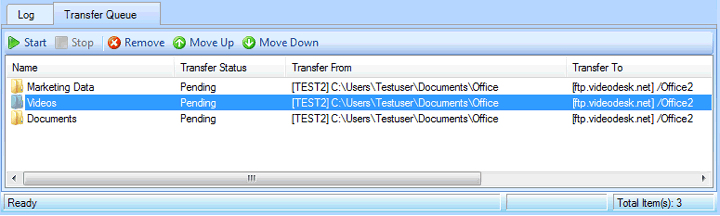
You can add files and folders from the PC and the FTP server to the queue. Adding files to the Transfer Queue is very simple. You just have to drag the files from the File Manager and drop them in the queue. The Transfer Queue displays the name and size of each file in the list. For the file currently being transferred, it also shows the Transfer Status and Transfer percentage which helps you to keep track of how long the transfer will take.
The Transfer Queue has its own Toolbar. After adding the files to the queue, start the transfer by clicking the Start button on the Toolbar of the Transfer Queue window. Before you start the transfer, you can remove the files from the queue or drag more files from the File Manager. You can set the order in which the files are going to be transferred with the Move Up and Move Down buttons.
Note: By navigating on both sides of the File Manager, you can queue transfers with both different destinations and different sources, for instance transferring file ABC.txt to one folder and file XYZ.txt to a different folder.
|