Welcome to Security Monitor Pro
Setup an effective video surveillance software within minutes! Security Monitor Pro allows you to use any IP camera or Webcam to keep an eye on your home, office, parking area or anywhere you need security. Currently more than 2200 different IP camera models and virtually all Webcams are supported.
Security Monitor Pro provides the ability to independently configure Video Recording and Monitoring actions for individual cameras. When motion is detected, you can configure the program to create a video recording of the event, take photos, sound an alarm, or send you an email notification. You can automatically upload the Photos to your website or keep a backup of recorded videos and photos in your FTP account.
You can access Security Monitor Pro from any location. You can enable Remote Access and watch live preview on your web browser within local area network. You can also access cameras from your Android mobile device from anywhere in the world.
Secure your property such as home, offices, parking areas or any gated entrances using automatic vehicle License Plate Detector add-on. The most common option is to use License Plate Detector to monitor vehicles and maintain a log of detected license plate numbers.
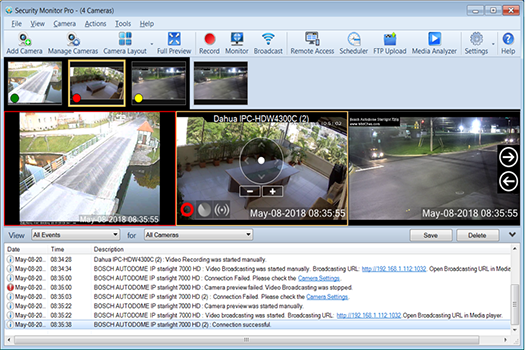
Security Monitor Pro User Interface
 |
Getting Started:
|
|