|
| Security Monitor Pro: Starting and Stopping Monitoring With Alerts |
Starting and Stopping Monitoring With Alerts
Before you start monitoring:
- Add a Device.
- Start the Preview to start using the selected device.
- Start Monitoring.
If one or more devices are scheduled then Security Monitor Pro automatically starts monitoring. To begin monitoring with a device, select it and click the Start Monitoring With Alerts button from its preview control bar. Once monitoring is started, this button becomes the Stop Monitoring With Alerts button. Click on it to stop monitoring.
Monitoring can also be started and stopped from the Monitor menu.
To begin monitoring from the Monitor menu:
- Open the Monitor menu and select Start Monitoring With Alerts.
- The Set Monitoring Options dialog lists all monitoring devices added to Security Monitor Pro. Check the devices you want to start monitoring.
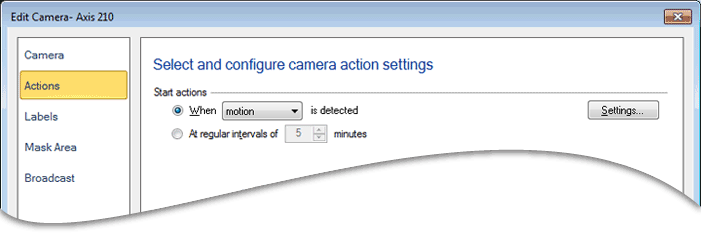
- To configure settings for any individual device, select it by clicking on its name in the list and then click the Set Monitoring Options button.
- Click the Start Monitoring with Alerts button to begin monitoring with the selected devices.
To stop monitoring from the Monitor menu:
- On the Monitoring menu, click Stop Monitoring With Alerts.
- The Set Monitoring Options dialog lists the device that are currently monitoring. Check the devices you want to stop.
- Click the Stop Monitoring button.
Disabling Low Power Schemes
A monitoring session might fail if you have configured a low power scheme on your PC and the scheme is activated while Security Monitor Pro is monitoring. To disable the low power schemes like system standby mode, hibernation, turn off monitor, turn off hard disks etc.:
- On the Tools menu, click Application Settings.
- Under the General tab, check the option Disable low power schemes (Standby, Hibernate, etc.) during monitoring. By default, this option is checked.
- Click OK.
Disabling Screen Saver
To disable the screen saver:
- On the Tools menu, click Application Settings.
- Under the General tab, check the option Disable Screen Saver during monitoring. By default, this option is checked.
- Click OK.
|