General Application Settings
Settings
To use the program effectively, you can configure
the application settings.
Click Tools >> Settings to enable the
following features:
General Settings
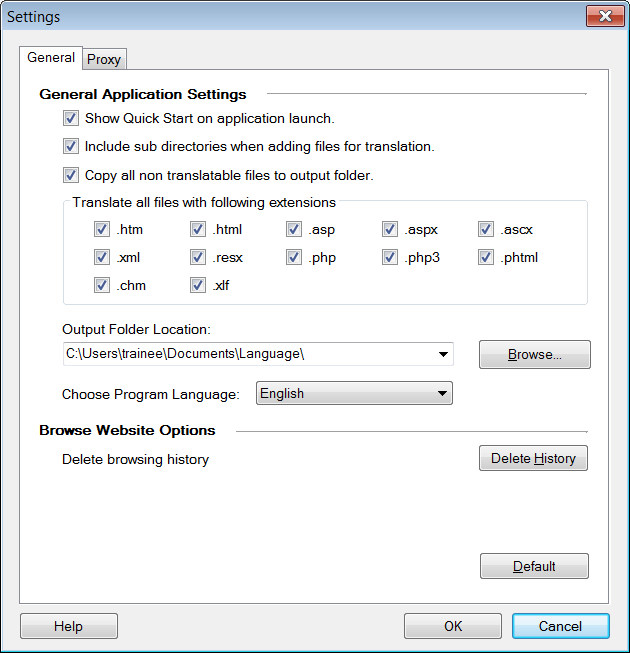
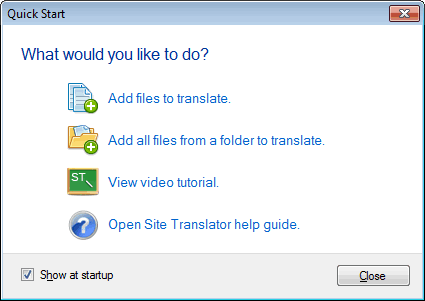
If Show Quick Start on application launch
is selected, the Quick Start window appears when Site Translator is launched.
This window lets you perform the most important operations like assding files to
translate, browsing the web, and opening the user guide for Site Translator.
When adding folders for translation, you can choose
for the contents of its subfolders to be translated as well. Enable the option
Include sub directories when adding files for translation.
If folder1 contains
folder2 and folder3, the program converts the contents of all
three folders. The translated files are saved in the newly created folders named
folder1, folder2, and folder3.
If there exist any files whose format is not
supported for translation, you may still choose to copy it in the output folder
as it is. These files include all image files, executable programs, Flash
animations etc. Enable the option Copy all non-translatable files to
the output folder. Check this option so that you do not
have broken links in you translated pages.
All the supported
file formats for translation are listed in the section Translate all
files with following extensions. Disable the file formats you do not
want to be translated. For instance, if you disable the .xml option, the XML
files are not translated.
Choose the output
folder location to save your translated files.
The language in which the application interface is
displayed can be changed using the Choose Program Language dropdown. When
the language is changed, the text in the program is displayed in the selected
language including Menus, Dialog boxes, Window titles, etc.
Browse Website Options
Site Translator remembers the web pages that you
have visited and translated. These pages are stored in the History of the
program so that you can easily revisit them. However, you can delete the
browsing history with the Delete History button. Deleting allows you to
translate those pages again, after customizing the
Translation Memory.
Proxy Settings
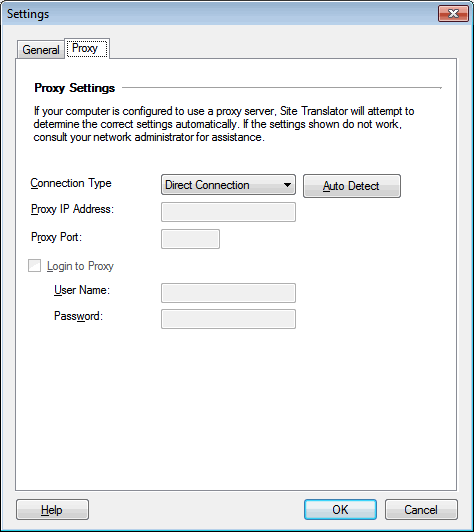
If your computer uses a proxy to connect to the
Internet, Site Translator will try to find the correct settings
automatically. If auto-detection does not work, consult your network
administrator for help in configuring the proxy settings. Choose Direct
Connection from the drop down if your computer is not connected to the proxy
server.
|