DeskShare homepage Deutsch   Français    Español   Portuguese   
.
  Products  


Pages:
  
1.Index
2.Getting Started
 
What's New?
System Requirements
Understanding the User Interface
3.Quick Start
4.Working with Devices
5.Auto Configuration Wizard
6.Motion/Noise Settings
7.Types of Alerts
8.Working with Periodically Activated Alerts
9.Remote Monitoring
10.Minimizing the Application
11.Media Files
12.Event Logs
13.Resources
 
 
  WebCam Monitor v5.02


WebCam Monitor: Understanding WebCam Monitor's User Interface

Understanding WebCam Monitor's User Interface

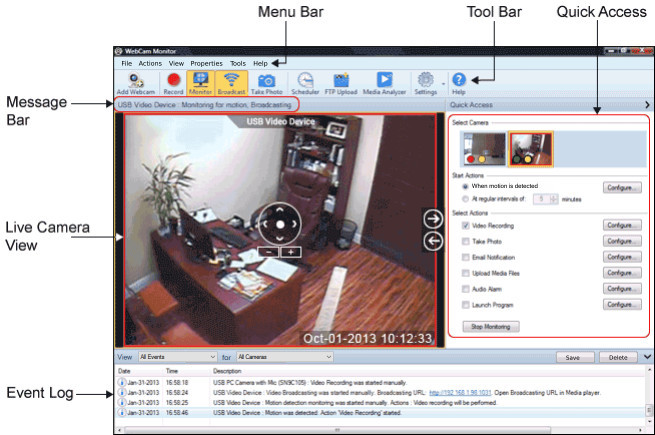
WebCam Monitor's user interface has been designed with user-friendliness and easy access to all functionality in mind.

Tool Bar

The Tool Bar provides easy access to all the features of WebCam Monitor.

Monitoring Status Bar

This bar primarily displays the monitoring status along with alerts status.  When not monitoring, the bar also displays the Device Scheduler status or the Preview status.

Device Selection

The video and audio device selection list displays the currently running video and audio devices.  To preview and monitor using a video or audio device, select those devices in the lists.

Device Preview

The device preview displays video from the selected video device.

Audio Sensitivity Meter

The audio sensitivity meter displays the level of sound picked by the audio device you have selected.

Device Preview and Monitoring Controls

You can Start, Pause and Stop the preview using the Preview controls.  To start monitoring, click the Start Monitoring with Alerts button.  You can use the Zoom In and Zoom out buttons.  An additional Pan/Tilt button is available only for IP cameras.  The Start Recording button can be used to begin recording manually.

Log

The log window logs messages that originate from various events in WebCam Monitor.  If you setup WebCam Monitor to run in your absence then the log enables you to review the events later.

Recordings

The Recordings window displays video, audio and snap files from the specified folder.  This window makes it very simple for you to manage files generated by WebCam Monitor from within the application.

Quick Settings

You can configure all your monitoring sessions and alerts from the Quick Settings pane.

Run Alerts

In WebCam Monitor, you can choose to trigger the selected alerts when it detects motion or noise or periodically after the specified duration.  After selecting the the Alerts you want to run, click the Start Monitoring with Alerts link.

Which Alerts do you want to run?

WebCam Monitor provides a whole range of alerts for all requirements.

  1. Video/Audio Recording: You can record the activity in the WMV format.
  2. Take Snap: You can take snaps of the activity as it happens in the JPEG format.
  3. E-mail Notification: You can receive E-mails, containing embedded snaps whenever an alert is triggered.
  4. Sound Alarm: An audio file of your choice can be played when an alert is triggered.
  5. Launch Program: This alert option, if selected, runs the desired program, script or batch whenever it is triggered.

 You can also test the selected Alerts by clicking the Test Selected Alert (s) button.

Schedule Camera(s) for Monitoring

Depending upon the extent of your surveillance requirements, you can use a single device pair (one video capture device and one audio capture device) or schedule monitoring through multiple devices in a cycle by clicking on the Schedule Camera(s) for Monitoring link.

Copyright © DeskShare Incorporated. All rights reserved.