|
|
| Auto FTP Manager: Using the File Manager |
Using the File Manager
Navigating between Folders
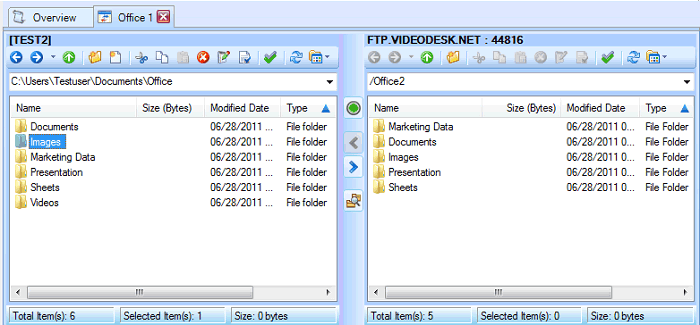
Whether the folders you transfer from are located on your computer/network drive or on a FTP server, you can navigate among folders very easily. A dropdown list includes all local drives or folders. In case of an FTP server, it shows you a list of the folders you had previously opened by typing the path directly. You can open the folder(s) you want to transfer to/from using the dropdown list. The path of the folder you want to work with can also be typed in directly. The Back and Next buttons on the toolbar for the folder can be used to navigate back and forth like we navigate on windows explorer. There is a drop down list next to the Back-Next button on the toolbar which has the navigation history listed for the current session.
Moving Files and Folders
Auto FTP Manager supports standard Windows drag, drop, cut, copy and paste file operations. It can work with other Windows programs like Windows Explorer, Internet Explorer and any other program that supports these standard operations.
Files and folders can be transferred to and from the Windows environment by dragging and dropping them between Auto FTP Manager and other applications. For instance, to transfer files from Windows Explorer, select them in Windows Explorer and drag and drop them to the remote pane of File Manager currently open in Auto FTP Manager. You may also cut or copy them from Windows Explorer and paste them to Auto FTP Manager. Going the other direction, you can drag a file from the FTP server in Auto FTP Manager and drop it on the Windows Desktop.
The Folder Toolbar
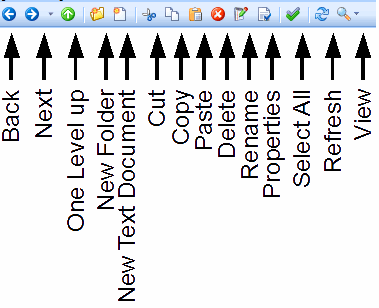
A toolbar is provided for both the folders between which you are transferring files and folders. Commonly used functions can be performed quickly by clicking on the buttons provided. The Back, Next and One Level Up button can be used to navigate across folders. The New Folder button creates a folder, and New Text Document a new document. (New Text Document is only present in the Folder 1 toolbar.) There are the Cut, Copy, Paste, Delete and Rename buttons that affect the selected file. The Properties button can be used to view details like location, size, creation date etc. for the selected file or folder. Refresh and Select All buttons are provided. The View button allows you to change the way the files and folders are displayed. You can choose the Details, List, or Large Icons view.
|