Scene Detection and Clip Creation
Once video files have been added to the Videos and Photos Collection, the next step is to create clips. Auto Movie Creator can scan video files and automatically split them into clips based on scenes. The program uses an advanced algorithm to determine when scenes start and end based on visual continuity.
To detect scenes, select a video file and click the Detect Scenes button on the toolbar or right-click the file and select 'Detect Scenes' from the menu that opens.
The Detect Scenes dialog has a Sensitivity option. You can move the slider to increase/decrease the sensitivity to scene change. Increased sensitivity would lead to creation of more clips since even a slight change in the scene would be detected and vice versa.
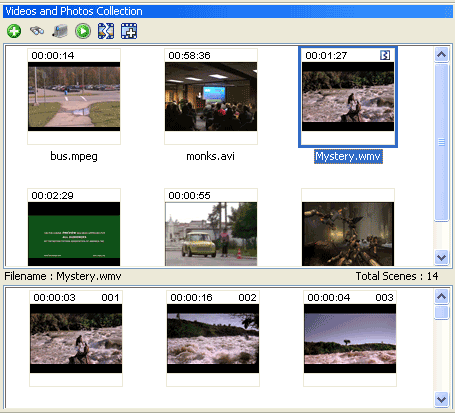
Clips are created and displayed in the Videos and Photos Collection in a separate section below the media files, in the order in which scenes appear in the video. You do not need to drag these clips to the Storyboard in the same order that they are shown here, and you can remove clips that contain unwanted video footage that won't be used in the final movie. Wherever you click on a video file for which scenes have been detected, its clips will be automatically displayed.
Each clip is numbered and its duration is displayed. See Figure 1.
 |
|
Figure 1: Clips of the Selected Video File |
Notice that after scenes are detected, the file is marked with the  icon. icon.
You can select one or all clips, right-click and choose Add to Storyboard or you can drag-and-drop them on the Storyboard individually. When a clip is added to the Storyboard, it is labeled with the name of the video file it was created from.
Scene information is remembered when you close and open Auto Movie Creator, as long as you leave the movie file in the Video and Photos Collection.
If you would like to redect scenes with a different sensitivity, simply right-click on the movie again and choose Detect Scenes.
Combining Scenes
You can combine some of the scenes you have added to the Storyboard into a single clip, which can help when adding effects, narration or music.
|