|
| DVD Author Plus: The Interface |
The DVD Author Plus Interface
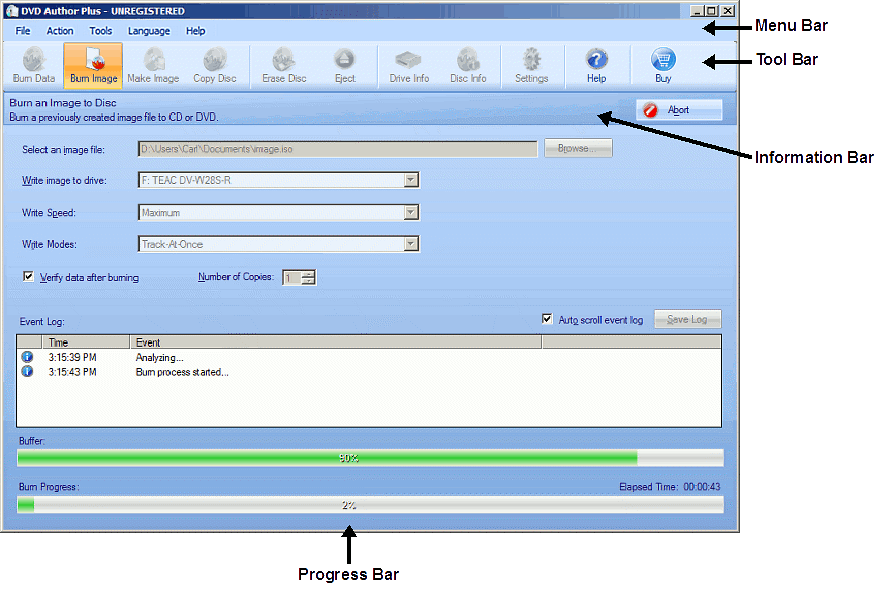
The DVD Author Plus window is divided into several areas:
-
Menu Bar: The main menus that give you access to all the functions of the program.
-
Tool Bar: Simply by clicking one of the buttons in the main toolbar, you can create a data CD or DVD, burn or create a disc image, create a disc image, copy an existing CD or DVD, etc.
-
Information Bar: When you are using any of DVD Author Plus's main functions (such as creating a data disc), the Information Bar displays a brief explanation. If this option has multiple screens (as shown above) they will be listed at the top of the Information Bar separated by vertical lines: Add Files | Burn Data to Disc. The current screen will be shown in blue, the others in gray.
-
Progress Bar: At the bottom of the window is a Progress Bar, which indicates the % completed of the current task. If there are subtasks, there may be two progress bars. For example, when copying an audio CD, one progress bar shows the % completed for each song. The other shows the % completed of the entire disc.
The remainder of the window will change depending on what you are doing.
All DVD Author Plus screens will have either a Next button, an Abort button (as shown above) or a button in the same location in the Information Bar to start an operation. If you create a data disc, there is a Burn button. If you create a disc image there will be a Make Image button, and so on. When you are finished with any screen, click the button in the top right to either move to the next screen, or begin the operation.
You can display the program's interface in several different languages. To change the interface language, click the Language menu and select one. For more information, see Interface Language.
See the section on Using DVD Author Plus for more information on specific Actions.
|