DeskShare homepage Deutsch   Français    Español   Portuguese   
.
  Support  
 
 
Pages:
  
1.Index
2.Getting Started
3.Working With Media Files
4.Converting Media Files
 
Starting and Stopping Conversions
Select Files to Convert
Changing Conversion Settings
Configuring AVI Properties
Configuring QuickTime Properties
Configuring MPEG 1 and VCD Properties
Configuring MPEG 2, SVCD, and DVD Properties
Configuring MP4 Properties
Configuring Flash Video Properties
Configuring 3GPP and 3G2 Properties
Configuring WMF Properties
 
Configuring files for Desktop Viewing
Configuring files for Streaming
Configuring files for Web Server Progressive Download
Configuring Files For Portable Devices
Selecting an MBR Stream
Selecting Bit Rates
Configuring WAV Properties
Configuring MP3 Properties
Configuring AAC Properties
Configuring AC3 Properties
Configuring AMR Properties
Configuring M4A Properties
Configuring Ogg Vorbis Properties
Extract Only Audio
Converting Files to Play on the Apple iPod
Converting Files to Play on the Sony PSP
Having Trouble Converting Files?
5.Digital Media Converter Pro Tools
6.Resources
 

Digital Media Converter Pro v2.23


Digital Media Converter Pro: Converting Files to Play on the Apple iPod

Converting Files to Play on the Apple iPod

To play audio files on your Apple iPod, you can convert them to WAV, MP3, or AAC format using Digital Media Converter Pro. To play video files on an iPod, you can convert them to IPOD format.

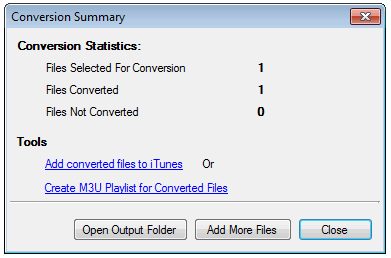
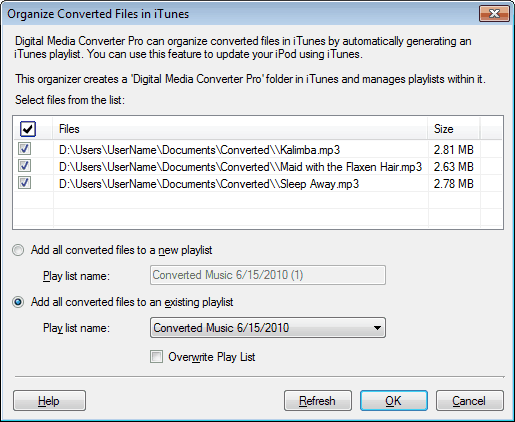
Once the files are converted, they are automatically added to Apple iTunes if it is installed on your PC.

To convert audio files for the iPod, follow the steps below:

  1. In the File menu, click on Add Files to add the files you want to convert to the list.
  2. On the toolbar, click Settings. Select WAV, MP3 or AAC as the conversion format.
  3. Click the Convert button on the toolbar.
  4. After the process is complete, the converted files will be saved in the folder specified in Settings.
  5. The files will be added to iTunes. Connect your iPod and synchronize to transfer the converted files.

To convert video files:

  1. In the File menu, click on Add Files to add files to the list.
  2. On the toolbar, click Settings. Select IPOD as the conversion format.
  3. Click the Convert button on the toolbar to begin the conversion.
  4. If Apple iTunes 6.0 or higher is installed on your computer, the files will automatically be added to iTunes.  Connect your iPod to your computer so that iTunes can update it with the converted files.
Copyright © DeskShare Incorporated. All rights reserved.