Windows Media Format files (WMV and WMA files) can be created for different purposes.
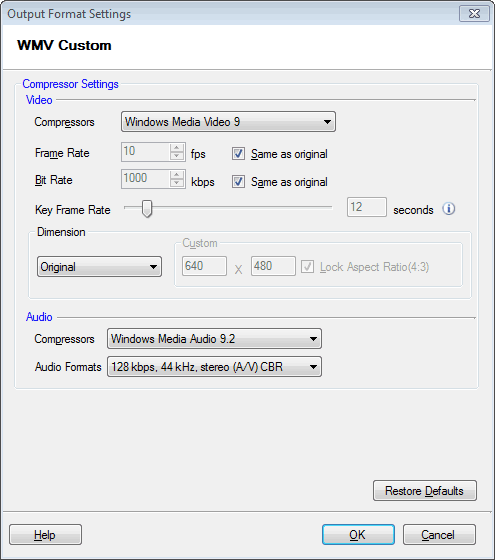
To configure WMV Custom:
Formats >> Select Standard Format >> WMV Custom >> Configure.
By default, the video compressor is set to Windows Media Video 9. The Frame Rate is set at 10 Fps and Bitrate is 1000 Kbps. You can retain, change or set your own video dimensions.
By default, the audio compressor is set to Windows Media Audio 9.2. Options for Audio Format are listed from lowest to highest quality, by default 128 kbps, 44kHz, stereo (A/V) CBR is selected. However you can change the option.
To configure WMA Custom:
Formats >> Select Standard Format >> WMA Custom >> Configure.
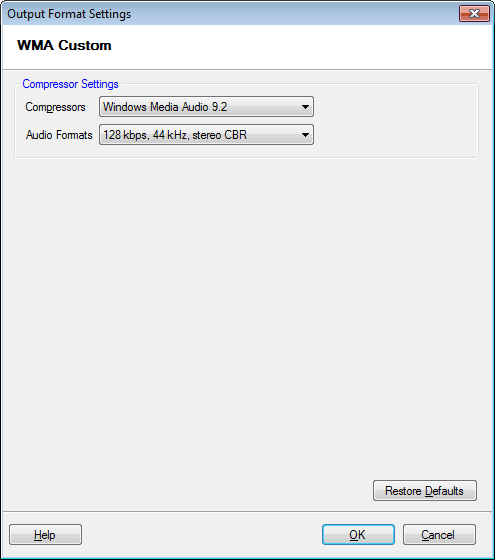
By default, the audio compressor is set to Windows Media Audio 9.2. Options for Audio Format are listed from lowest to highest quality, by default 64 kbps, 44kHz, stereo CBR is selected. However you can change the option.
To configure WMV/WMA for Desktop Conversion Settings:
Formats >> Select Standard Format >> WMV for Desktop Viewing or WMA For Desktop Listening >> Configure.
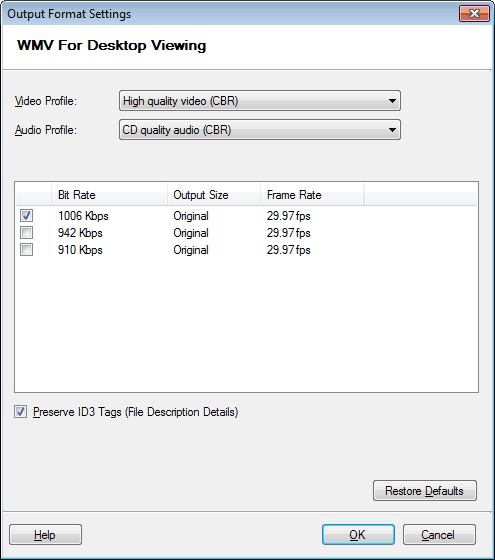
The video profile selected is High Quality Video (CBR), the audio profile is High definition quality audio (CBR) and the Video Dimension is the same as the original file.
By default, the Encoded Bitrate is set at 1134 Kbps and the frame rate at 29.97 Fps. The output file size will be the same as the original file after conversion.
WMA for Desktop Listening
By default, the Audio Profile selected is CD quality audio (CBR). The Encoded Bitrate is set at 192 Kbps and the overhead is 8 Kbps. The Required Bitrate for the conversion will be 200 Kbps.
To configure WMV/WMA for Internet Streaming Conversion Settings:
Formats >> Select Standard Format >> WMV or WMA For Internet Streaming >> Configure.
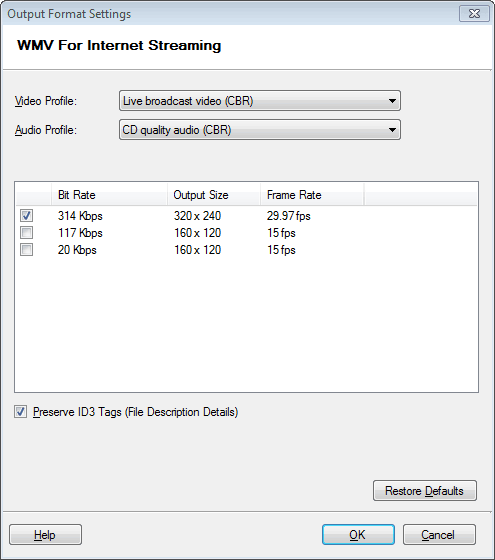
The video profile selected is Live Broadcast Video (CBR), the audio profile is CD quality audio (CBR) and the Video Dimension is the same as the original file.
By default, the Encoded Bitrate is set at 314 Kbps and the frame rate at 29.97 Fps. The output file size will be the same as the original file after conversion.
WMA For Internet Streaming
By default, the Audio Profile selected is CD quality audio (CBR). The Encoded Bitrate is set at 64 Kbps and the overhead is 6 Kbps. The Required Bitrate for the conversion will be 70 Kbps.
Read the article: Reducing Video File Sizes
To configure WMV/WMA for Progressive Download Conversion Settings:
Formats >> Select Standard Format >> WMV or WMA For Progressive Download >> Configure.
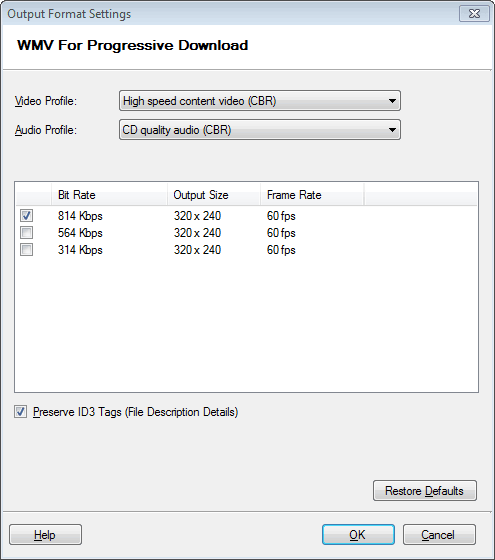
The video profile selected is High speed content video (CBR), the audio profile is CD quality audio (CBR) and the Video Dimension is the same as the original file.
By default, the Encoded Bitrate is set at 814 Kbps and the frame rate at 60 Fps. The output file size will be the same as the original file after conversion.
WMA For Progressive Download
By default, the Audio Profile selected is CD quality audio (CBR). The Encoded Bitrate is set at 64 Kbps and the overhead is 6 Kbps. The Required Bitrate for the conversion is 70 Kbps.
Selecting an MBR Stream
If you plan to deliver your content as a stream from a server running Microsoft Windows Media Services, encoding multiple bitrate streams provides better quality during times of network congestion (or over a slow network connection). When you set up an MBR stream your content is encoded at every bit rate you specify. When a player receives an MBR stream, only the stream that is the most appropriate for current network conditions plays. The Windows Media server and player handle the process of selecting the appropriate stream, which is invisible to the user. You can only use CBR encoding when creating an MBR stream.
You can encode MBR streams for both audio and video content; however, it is not necessary to use MBR encoding for both audio and video in a single stream. For example, you can stream audio at one bit rate and have multiple bit rates for the video portion of the stream. Also keep in mind that encoding an MBR stream uses more processing power. Select a range of bit rates that you think will meet the playback needs of the audiences you are targeting.
Selecting Bitrates
For files that will be streamed over a network, you must consider carefully what bit rates you should use. Under most circumstances you can add the bit rates of all of the streams in a file together to get a general idea of the available bandwidth required to stream the file. However, a certain amount of overhead is also required for each stream. This overhead is summarized in the following table:
| Bit Rate Range (Kbps) | Additional Bandwidth Required for overhead (Kbps) |
| 10 - 16 | 3 |
| 17 - 30 | 4 |
| 31 - 45 | 5 |
| 46 - 70 | 6 |
| 71 - 225 | 7 |
| > 225 | 9 |
You must also consider that the theoretical maximum bandwidth available over a network connection is not a practical target bit rate. The average available bandwidth for any given connection falls well short of the bandwidth capacity of the connection, because of network traffic and many other factors.
Preserve ID3 Tags (file description details)
By default, Digital Media Converter Pro retains metadata (like song titles and names of the artists) from your source file. To avoid it, uncheck this option.