Working With Web Media
A convenient Web Media Downloader allows you to download the media files from Internet and convert them to the desired output format. You can download videos from any web page for conversion or just viewing.
Add Media Files from Web Page
Click File >> Add Web Media >> Download from Web Page.
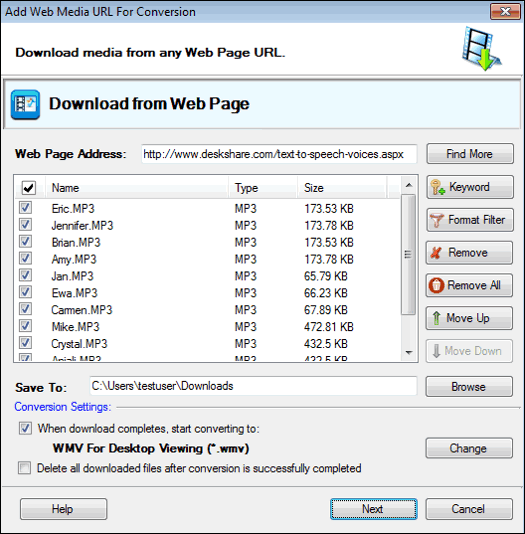
Enter the Web Page URL and click the Search button. The media files are searched and are added in the list.
If the Web Page you entered has links to many different media files, you can filter them based on multiple keywords separated by semicolon (;). For example, if you enter keywords like Michael Jackson;1984 then it searches the media files with name containing Michael Jackson or 1984.
You can filter your search by specifying the media type. Click Format Filter and enable the audio and/or video formats that you want to be searched.
Conversion Settings
The option When download completes, start converting to automatically adds the downloaded files to the conversion list. Select the output format by clicking the Change button. You can choose to delete the downloaded files once they are converted successfully. Enable the option Delete all downloaded files after conversion is successfully completed.
|