Pages:
  
1.Index
2.Getting Started
3.Working With Media Files
4.Converting Media Files
 
Starting and Stopping Conversions
Select Files to Convert
Changing Conversion Settings
Configuring AVI Properties
Configuring QuickTime Properties
Configuring MPEG 1 and VCD Properties
Configuring MPEG 2, SVCD, and DVD Properties
Configuring MP4 Properties
Configuring Flash Video Properties
Configuring 3GPP and 3G2 Properties
Configuring WMF Properties
 
Configuring files for Desktop Viewing
Configuring files for Streaming
Configuring files for Web Server Progressive Download
Configuring Files For Portable Devices
Selecting an MBR Stream
Selecting Bit Rates
Configuring WAV Properties
Configuring MP3 Properties
Configuring AAC Properties
Configuring AC3 Properties
Configuring AMR Properties
Configuring M4A Properties
Configuring Ogg Vorbis Properties
Extract Only Audio
Converting Files to Play on the Apple iPod
Converting Files to Play on the Sony PSP
Having Trouble Converting Files?
5.Digital Media Converter Pro Tools
6.Resources
 
 
  Digital Media Converter Pro v2.1


Digital Media Converter Pro: Configuring Third Generation Phone Video Properties

Configuring Third Generation Phone Video Properties  

The 3GPP and 3GP2 video file formats are specifically designed to play on mobile phones.  They produce very small files with very high compression that can play back with acceptable quality on a small screen, using the low-powered processors found in celllular telephones.  They can also be played on a PC using Apple's QuickTime Player.

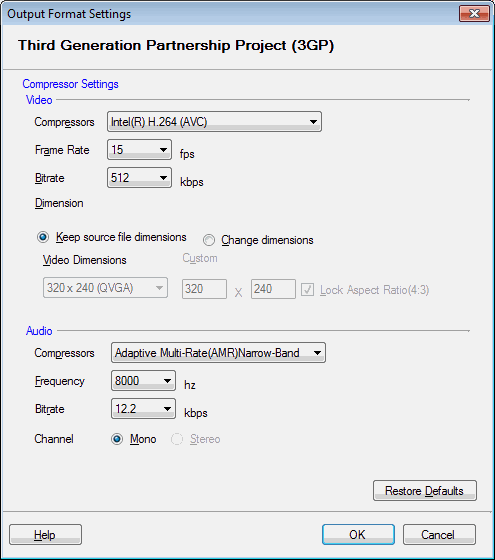
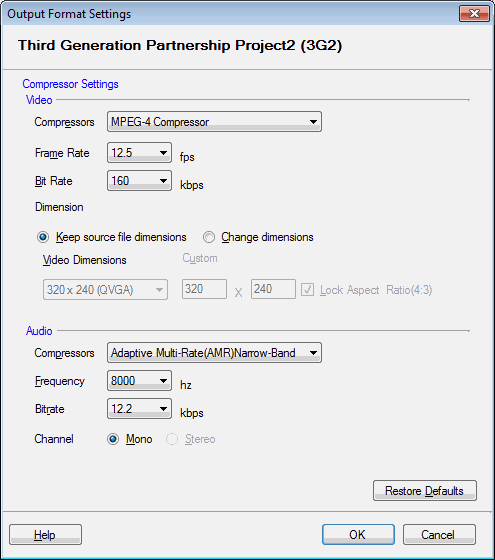
To set 3GPP or 3GP2 Properies:

  1. After adding files to the list, click the Tools menu and then Settings.
  2. Under General Settings, select either 3GP or 3G2  from the Convert To Video Format list.
  3. Click the Properties tab or the Properties button.

Dimensions

With Digital Media Converter Pro you can either convert your video to 3G files with the same dimensions, or to new dimensions you select. To use the original dimensions, select Keep source file dimensions. To change the dimensions select Change dimensions. 

  • By default your converted file keeps the dimensions of the original file.
  • If you want to alter the aspect ratio of the video, select Change dimensions.
  • The "Aspect Ratio" of a video image is the relationship between the width and the height.  Standard TV has an aspect ratio of 4:3, meaning that it is 3/4 as tall as it is wide.  Movies and HD TV have wider pictures, meaning a different aspect ratio.  If you choose to Change dimensions, you can unselect Lock Aspect Ratio.  If you know that you are converting widescreen movies, you should be sure that the dimensions you select are in the correct ratio before converting.

Compressor Settings

To apply a video compressor:

From the Video Compressors box select a compressor.  Unless you  have a reason to change it, the default compressor should be used.

Bitrate:

The Bitrate is the amount of information that is stored in the file to represent each second of video.  If you set a bitrate of 2000 Kbps, a 10 second video file will contain 20,000 bits of information about video.  (There will also be audio information.)  The higher the bitrate, the higher the quality of the video, but also the larger the size of the file.  Generally, smaller dimensions will allow you to use a lower bitrate and still have a good quality picture.

Frame Rate:

The Frame Rate of a media file is the number of frames that are displayed in one second. Files with a higher frame rate such as 25, 30 to 60 FPS (Frames Per Second) can show smoother motion than files with lower frame rates such as 10 or 15 FPS. However, video files with lower frame rate are much smaller than files with higher frame rates. 15 FPS is the norm that is usually followed for video created for Web use. You can configure the frame rate in two ways:

   1. Choose to keep the source file frame rate by selecting Keep source file frame rate option or,
   2. Change the frame rate of the converted file by selecting the Change frame rate option and move the slider to get the desired frame rate.

To apply an Audio Compressor:

From the Audio Compressor box select a compressor. Again, unless you have a reason to change this value, it's a good idea to use the default compressor.

Frequency

Audio Frequency is the number of times per second that the audio signal can be adjusted. 

Higher frequency values give better sound quality but also increase the size of the audio. Generally, use higher quality settings for music and lower for speech. Select from the Frequency dropdown. By default, the audio will be encoded at 44.1 KHz (which is audio CD quality).

Bitrate

As with video, the Bitrate is the amount of information that is stored in the file to represent each second of audio.  High bitrates mean higher quality, and larger files.  If a low sampling frequency is used, there is less information to save and using a lower bitrate does not result in lower audio quality.

Channels

Select Mono to include only one sound channel with your AVI file, and Stereo to include channels for both left and right speakers.  Using Stereo produces slightly larger files.

Copyright © DeskShare Incorporated. All rights reserved.