Audio Tuning Wizard
The Audio Tuning Wizard lets you select one or more audio devices for recording. Make sure that your audio devices, such as your microphone and speakers are connected to your PC properly before running the Wizard. To perform the audio tuning effectively, you need to close other software that plays or records sounds.
To Run the Audio Tuning Wizard:
Click Tools >> Tune Audio.
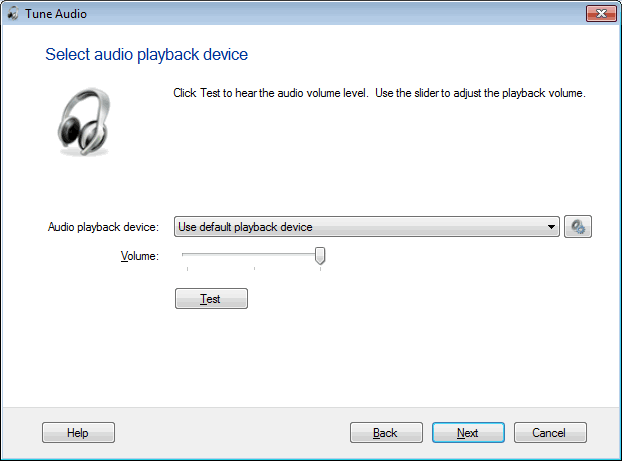
Adjust the playback Volume to the desired level using the slider. To check the level of the volume, Click Test. Repeat the steps until the volume is set correctly. Click Next.
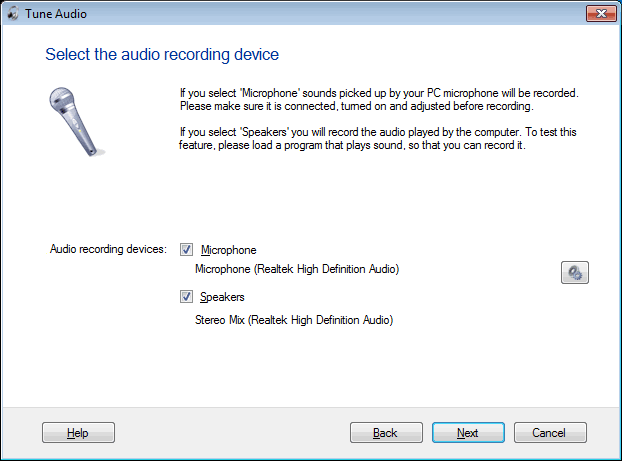
Select the device you need to record from here. They may include internal microphone (laptop integrated microphone), external microphone, USB devices that provide sound recording (such as webcams), stereo mix, mono mix etc. These audio recording devices are categorized as Microphones and Speakers. If you have multiple devices connected to your PC then you can see a list of all available devices and then you can select a device from this list.
You can record using the Microphone, Speakers, or both the devices at the same time. If you select " Speakers ", the program records the sounds from the computer. This is useful to record a movie or presentation from the screen, with the sound or music it offers. Speakers are often named "Stereo Mix", "Mono Mix", but you may also see other names, for example, "What U Hear" is commonly used in SoundBlaster audio drivers.
If the recording devices are disabled see How to enable the Audio Recording Devices.
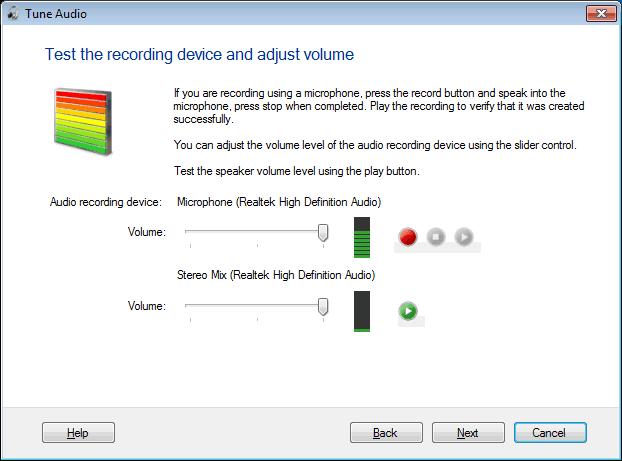
If you have selected to record from a microphone, adjust the Record volume to the desired level using the slider (To test recording from speakers, you can play a CD or DVD using Windows Media Player). To check the level of the recording volume use the Record, Stop and Play buttons.
If no sound is detected, click Back to choose a different sound device to record and try again. Once the audio tuning is successful, click Finish.
|