Display Settings
Changing or controlling the appearance of Windows will improve the effectiveness of your screen recordings. My Screen Recorder allows you to change the Windows appearance before you begin the screen recording.
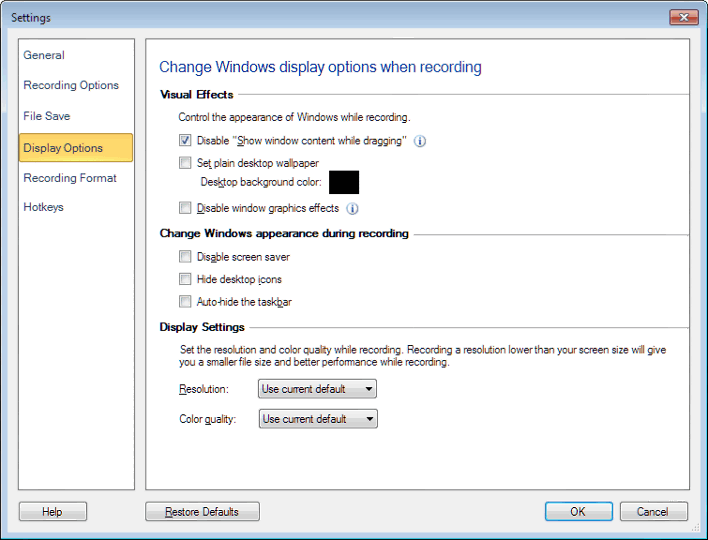
To control the appearance of Windows PC while recording, click Tools >> Settings >> Display Options.
Visual Effects
The window outlines can be seen without its contents, while dragging, on selecting the Disable "Show window contents while dragging" option. The painting effect that occurs while dragging a window is disabled. By hiding the inner contents, the display performance can be improved considerably. Select the Set plain desktop wallpaper option, if you do not want the wallpaper to be recorded during your screen recording. You can choose the background color to be applied to the desktop. You can select the Disable Windows graphics effects option to avoid Windows effects, like animated menus, to be displayed while recording.
Change Windows appearance during recording
The Disable Screen Saver option can be checked to temporarily avoid the screensaver from being recorded. To hide the desktop items during your screen recording, select the Hide desktop icons option.
Auto-hide the taskbar option hides the taskbar during a Full Screen recording.
Display Settings
You can choose the resolution and Color quality for your screen recording. Resolution and color quality represents the sharpness and clarity of the video. By default, the current window resolution and color quality is selected.
|