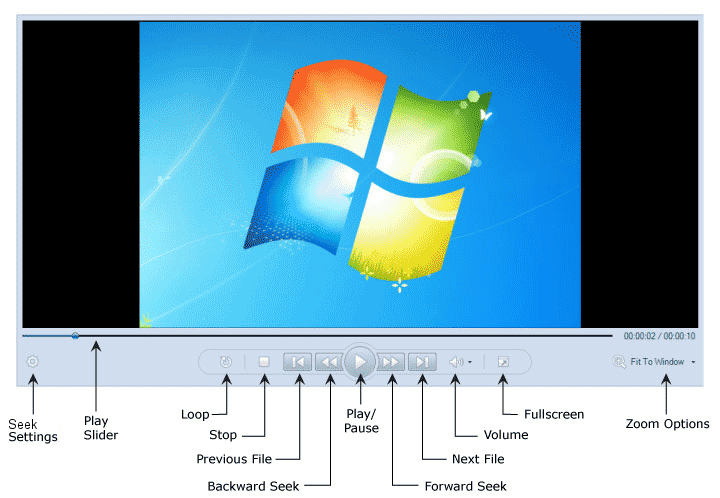
The application provides a built-in media player that allows you to view your screen recordings. Select the media file in the File list and click Play in the media player to view your screen recording.
You can watch the recording in the Preview area.
Click the Play button to start watching your screen recording in the preview window or on full screen.
The Pause button stops the play slider at the current point.
The Stop button stops the playback of the video and the play slider returns to the beginning.
Play slider gives you precise control over the playback of the recording. Clicking anywhere on the bar makes the play slider jump to that exact location in your video. You can also click and hold on the play slider itself, and then drag it to a new location.
Clicking the Rewind and Fast Forward button sends the play slider backward and forward skipping certain segments in the playback.
You can choose to play the immediate next or the previous media file from the File List with Next File and Previous File button.
If the loop button is on, the video continuously plays until you manually stop it.
You can adjust the volume of the playback and mute it with the Volume button. Control the volume with the help of the slider.
The screen recording can be zoomed-in or out, allowing you to view it in different magnifications.
In the Play menu, select Zoom and click a size to zoom-in or zoom-out a screen recording.