
Add audio narration to your screen recordings to make presentations and tutorials more interesting. Use a microphone to add your own audio narration to demonstrate any application or website.
Click Tools >> Settings >> Recording >> Source: Microphone/Speakers.
You can select the Microphone if you want to record your narration with the video. The Speaker option should be selected when you want to record the audio from the application itself. For example, while capturing a game, you might want the game sounds to be present along with the video in the recording.
You can also change the audio device from the Select Audio Recording Device area in the Device dropdown list.
When audio devices are selected, such as microphone or speakers, audio is recorded as the screen is captured. You can choose to record the screen activity without audio. Eliminating audio from your screen recordings results in smaller file sizes.
Click Tools >> Settings >> Recording.
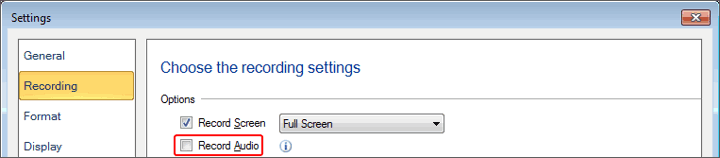
You need to uncheck the Record Audio option to record your video without audio.