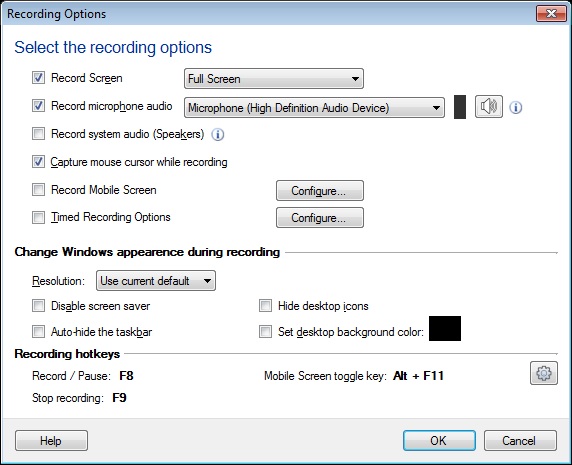
If you want to record everything that is visible on your computer screen, then use the Full Screen option. All icons, windows, the taskbar and any item appearing on your PC monitor will be recorded.
Click on File >> Record >> Recording Options >> Full Screen.
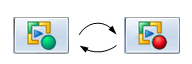
When you start recording, the application window minimizes. When the recording is in progress, My Screen Recorder icon in the system tray flashes continuously, as shown below:
Add audio narration to your screen recordings to make presentations and tutorials more interesting. Use a microphone to add your own audio narration to demonstrate any application or website.
You must setup a Microphone to record your narration with the video. Use Record Microphone Audio option and select the respective Microphone from the Audio Recording devices dropdown list. Make sure that the Microphone is enabled as your audio recording device.

You can also include the sounds from the computer speakers. For example, if you want to capture your favorite music playing on the PC during your screen recording, you can select Record system audio(speakers). Recording the audio from the microphone along with the speakers, allows you to record internet chat or any multimedia applications and add your own narration to it.
You can choose to record the screen activity without audio. Eliminating audio from your screen recordings results in smaller file sizes.
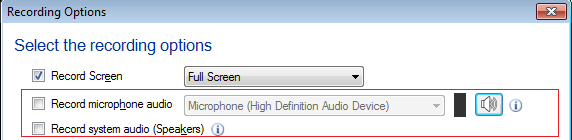
You need to uncheck both Record Microphone audio and Record system audio (Speakers) option to record your video without audio.
Note: If you have selected both Record Speakers and Record Microphone options then make sure both devices should have same sample rate and bit depth.
My Screen recorder allows you to capture your mobile screen during screen recording.
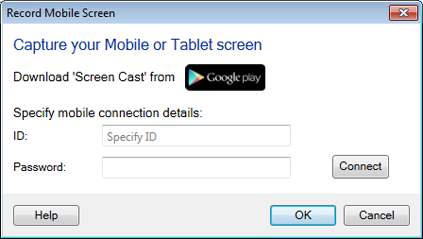
To use this feature, you will need to install Screen Cast application on your mobile device. Get it now from https://play.google.com/store. Select Record mobile screen checkbox and configure the settings by providing URL or ID, and Password from Screen Cast application. You can use hotkey to cast your mobile to your PC screen. You can also customize size and position of mobile screen preview window on your PC.
When you record the screen, the mouse cursor is captured by default. You can use the mouse cursor to highlight text or to point at the items while making a presentation, tutorial, or demonstration. If you do not want to capture the mouse cursor, disable it by deselecting the option Capture mouse cursor while recording.
My Screen Recorder allows you to record last few minutes of screen recordings or you can choose to record for x minutes.
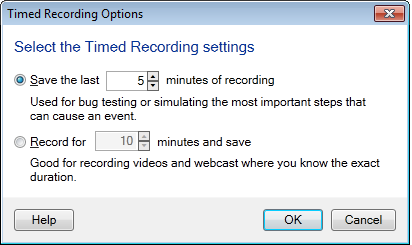
In some cases you may not need the entire recording. Your requirement is only a few minutes of the last part of the recording. Save only the last few minutes of your recording, by specifying the number of minutes, in the Save the last "x" minutes of recordings option.
If you want to limit your recording time duration then you can select Record for x minutes and save option. Select a timing and the My Screen Recorder will stop recording automatically after set time has reached.
Start/Pause: The easiest way to start a screen recording is to press the F8 key. The F8 key also acts as a toggle to pause and resume the screen recording.
Stop: To stop the recording, use the F9 Key.
At the end of the recording, My Screen Recorder will prompt you to save the file. You can preview the recording in the built-in media player.
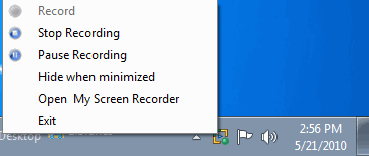
Another way to Start, Stop
or Pause the recording is to right click on the My Screen
Recorder icon  in the system tray.
You can change the keyboard shortcuts from the Tools menu >> Settings >> Hotkeys tab.