Changing Keyboard Shortcuts
The quickest method to start, stop, pause and resume the screen recording is by using the keyboard shortcuts.
To change the keyboard shortcuts, click Tools >> Settings >> Hotkeys.
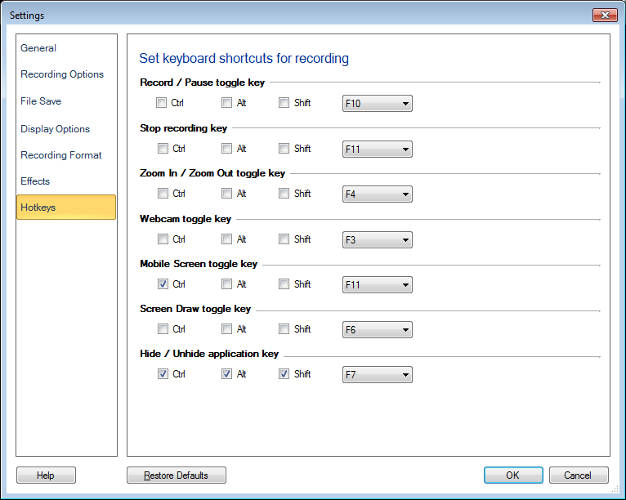
Record/Pause Toggle Key
The default keyboard shortcut to Record, Pause and Resume your screen recording is the F10 function key.
Stop Recording Key
The default keyboard shortcut to Stop your screen recording is the F11 function key.
You can change the default keyboard shortcuts by selecting different function keys from the dropdown list.
You have the option to choose either the Ctrl, Alt or Shift key along with the selected function key. For example, you can use Ctrl+F8 instead of the F11 shortcut key to Stop your screen recording.
Zoom In / Zoom Out Toggle key
The default keyboard shortcut to Zoom In and Zoom Out your screen recording is the F4 function key.
Use this feature while recording your screen to capture a close-up view of a particular object. There will be two levels of zoom. A zoom frame appears as soon as you toggle the function key. The size of the frame determines the zoom level, the smaller the frame, the higher the zoom level.
You can change the default keyboard shortcuts by selecting different function keys from the dropdown list. You have the option to choose either the Ctrl, Alt or Shift key along with the selected function key. For example, you can use Ctrl+F6 instead of the F4 shortcut key to Zoom In and Zoom Out your screen.
Webcam Toggle key
The default keyboard shortcut to add or remove a Webcam from your screen recording is the F3 function key.
When toggled, a Webcam window will be displayed on the screen. The display size can be customized by dragging the border of the window. Also the display can be moved easily on the dekstop. The F3 function key will be disabled if no Webcam is attached to the PC.
You can change the default keyboard shortcuts by selecting different function keys from the dropdown list. You have the option to choose either the Ctrl, Alt or Shift key along with the selected function key. For example, you can use Ctrl+F4 instead of the F3 shortcut key to add or reomve a webcam from your screen.
Mobile Screen toggle key
The default keyboard shortcut to record your mobile screen screen is the Ctrl+F11 function key.
You can change the default keyboard shortcuts by selecting different function keys from the dropdown list. You have the option to choose either the Ctrl, Alt or Shift key along with the selected function key. For example, you can use Shift+F4 instead of the Ctrl+F11 shortcut key to add or remove your mobile screen preview window on your PC screen.
Screen Draw Toggle key
The default keyboard shortcut for Screen Draw is F3 function key.
You can change the default keyboard shortcuts by selecting different function keys from the dropdown list.
You have the option to choose either the Ctrl, Alt or Shift key along with the selected function key. For example, you can use Ctrl+F3 instead of the F6 shortcut key to Draw on your screen recording.
Hide/Unhide Application Key
Hiding the application is useful when performing recording activity in the background. In the hidden mode, the application does not appear in the Taskbar or System tray.
The default keyboard shortcut to Hide/Unhide the application is Ctrl+Alt+Shift+F7.
|