Selecting a Screen Recording Format
Recording format refers to the video format and video profile that is selected for storing your screen recordings. You can save the recordings in WMV, AVI, H.264 (MP4) and WEBM formats. By default, recordings are stored as Windows Media Video (WMV) files. For a given quality setting, the WMV format produces a smaller size file than the AVI format. Use AVI files if you plan to edit or publish the recordings using another program which does not support WMV.
To change the recording format, click Tools >> Settings >> Recording Format.
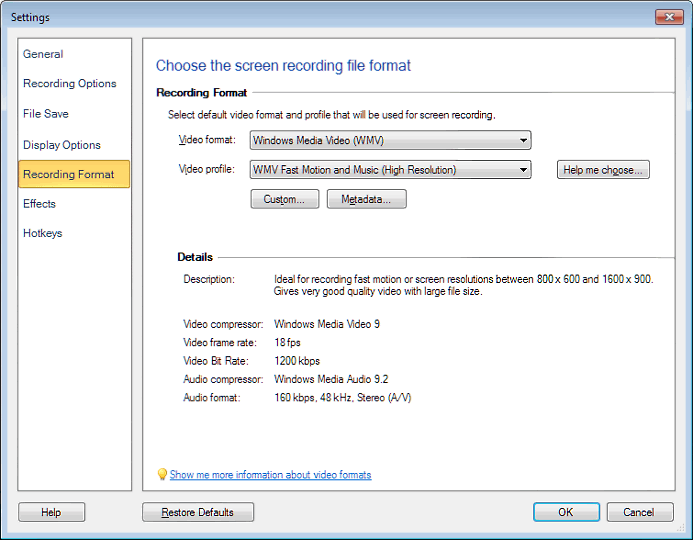
Use the Video Format dropdown list to pick the desired format.
For each format, you can pick a Video Profile. Each profile balances file size against video and audio quality. The default is WMV Fast Motion and Music (High Resolution). Recordings made with this profile are usually indistinguishable from the original screen. If file size is critical, you can lower the quality. If you need extremely high quality with very high image sizes and screen resolutions, you can increase it. A lower-quality profile is likely to work well, if you are recording only a small region.
Note that using very high quality profiles may cause problems on slower PCs, because recording high quality video and audio can increase the load on the computer's CPU and RAM.
Click Help Me Choose, if you are not sure about the profile to select for your recording. In case, none of the supplied profiles suits your requirement, click Custom. For the selected formats, you can create one Custom Profile, which has the characteristics you choose.
Metadata
You can add Metadata to WMV and WMA files. Metadata is additional information about the recording that is visible in the player when the file is played back.
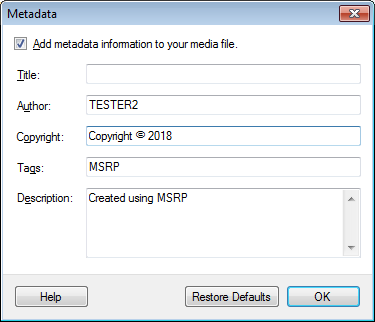
- Title field selects a title for the recording.
- Author describes the name of the person recording the video.
- Copyright field describes the copyright owner, usually a company or the person recording.
- Video tags are useful when the user is searching for a video file. For instance, if you tag the recordings that are used on your web site with "website", you can use Windows Search to quickly locate them all.
- Description provides an overview of the purpose or content of the recording.
Note - You can use one, some, or all the metadata options.
|