| Security Monitor Pro: Configuring Broadcasting |
Configuring Broadcasting
Broadcasting lets users connect to the PC running Security Monitor Pro and view live video. The number of users that can connect is limited by the bandwidth of your Internet connection and the resources of the PC. Broadcasting uses advanced Windows Media streaming technology to provide you with the best quality media broadcasting.
To broadcast video, click on Camera >> Configure Broadcasting
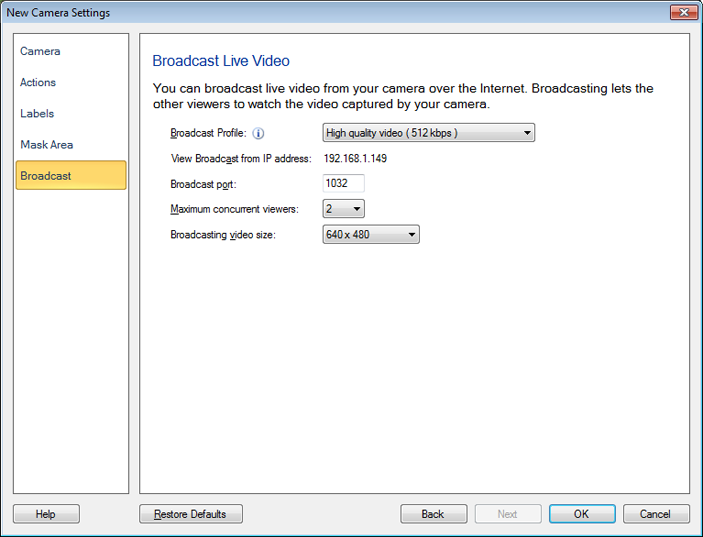
Live Broadcasting
Profile: You can select the broadcast profile and bandwidth from the drop-down menu.
Maximum concurrent viewers: This is the number of other computers that can simultaneously view the video/audio broadcast from Security Monitor Pro. This maximum number is for this camera only—if you are broadcasting from multiple cameras, each camera's limit is separate from the others.
Port: Security Monitor Pro will automatically fill in a port number. The first camera to start broadcasting will default to port 1030, the next 1031, and so on. You can choose different ports if you prefer. Two cameras can not broadcast using the same port. Many Internet Service Providers (ISPs) block low-numbered ports (below 1024). If this is the case for your ISP, you will need to select higher-numbered ports.
If a port is selected that is already being used by another program, Security Monitor Pro will warn you. You must then select a different port in order to broadcast audio and/or video.
Select Broadcasting Option: Decide whether to Start Live Broadcasting automatically at Startup. If this checkbox is checked, broadcasting will begin as soon as the program starts.
To actually start the broadcast, click on Actions >> Start Broadcasting.
Note: Each camera must be configured separately. You can broadcast from one, a set of, or all cameras.
Show Broadcast Status
Click on View >> Broadcast Status to view the current status of live video broadcasts being sent from Security Monitor Pro.
The dialog that is displayed shows the Number of connected clients and Details of connected clients. The details include Client number, IP Address, Port and DNS Name of the client.
|