Pages:
  
1.Index
2.Getting Started
 
What's New?
System Requirements
Understanding the User Interface
3.Quick Start
4.Application Settings
5.Working with Devices
6.Auto Configuration Wizard
7.Motion/Noise Settings
8.Types of Alerts
9.Working with Periodically Activated Alerts
10.Remote Monitoring
11.Media Files
12.Keyboard Shortcuts
13.Event Logs
14.Resources
 
 
  Security Monitor Pro v3.04


Security Monitor Pro: Understanding Security Monitor Pro's User Interface

Understanding Security Monitor Pro's User Interface

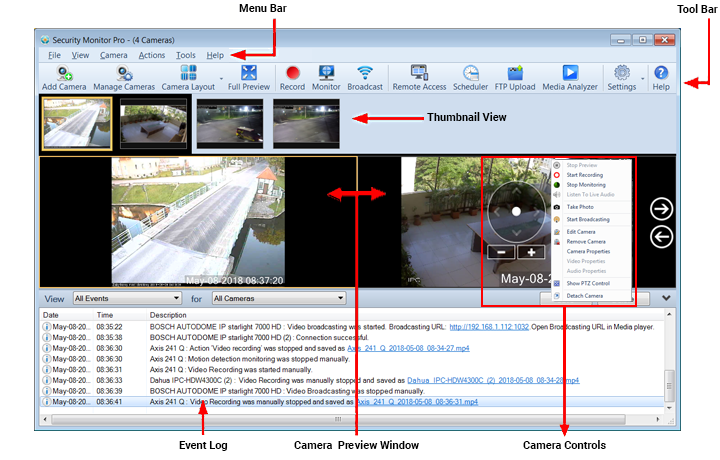
Security Monitor Pro's user interface has been designed with user-friendliness and easy access to all functions.

Tool Bar

The Tool Bar provides easy access to all the features of Security Monitor Pro.

Camera Thumbnail View

A miniature live preview of each selected video device is shown.  The double-arrow buttons on left and right side of the bar can be used to scroll it.  You can also change the selected camera by using the left and right arrow keys on your keyboard.  Left-clicking on a thumbnail image makes that camera's Preview (if open) visible.  Right-clicking opens an Options Menu that can be used to hide or show the camera, change settings, and so on.  When a camera's Device Preview (see below) is hidden, its thumbnail is replaced by a Preview Hidden icon:

Device Preview Window

An individual Device Preview window opens for every device that is added.  Click on this window to select a particular device.  If you click on the close button, the device remains installed in Security Monitor Pro, and any monitoring or recording continues, but the preview is hidden.  The preview window can be restored by right-clicking on the camera's thumbnail and selecting "Show Camera".  

You can also hide and show individual cameras' Device Preview windows using View >> Show Camera.

Show/Hide Cameras

Cameras with a checkmark have visible Device Previews. Unchecked cameras' Device Previews are hidden.  

By default, the Preview area displays Preview Windows for two cameras (if at least two cameras are installed and not hidden).  To change this number, open the View menu and click Preview, then select a number.  Security Monitor Pro can display up to 4 camera previews simultaneously.

The Preview window includes these elements:

Device Preview

Each Device Preview displays the video from one camera.  The horizontal scroll bar can be used to show a particular Device Preview window if there are too many to fit in the window at the same time.  You can also click on the camera's thumbnail, or set the Preview Window to continuously scroll through all cameras that are currently previewing.

Device Title Bar

The Device title bar shows the name of the device.

Device Status Bar

The Device Status bar shows what the camera is currently doing.  If the camera is Monitoring or Broadcasting, or files are Uploading, you can tell at a glance by looking here.

Audio Sensitivity Meter

The audio sensitivity meter displays the volume of the sound picked by the audio device associated with that window.

Device Preview and Monitoring Controls

You can Play and Pause the preview using the Preview controls.  To start monitoring, click the Start Monitoring button.  You can use the Zoom In and Zoom out buttons.  An additional Pan/Tilt button is available for some IP cameras.  The Start Recording button can be used to begin recording manually.  Take Photo records the current image as a bitmap file, and Camera Monitoring Options lets you set options for this camera, including monitoring, remote monitoring, and scheduling.

Monitoring Log

The Monitoring Log records all significant events—start and stop of monitoring, Alerts, masking, etc.  If you set Security Monitor Pro to run in your absence, the log lets you review the events later.  A separate Monitoring Log is maintained for each device.  The log for the currently-selected camera is shown in the Log window.  To see another camera's log, select the camera in the Device Preview Window or Thumbnail View.

Recordings

The Recordings tab displays video, audio and photo files.  This window makes it very simple for you to manage files generated by Security Monitor Pro from within the application.  By default, all devices store their recordings in the same folder.  Each device can be configured to have an individual Recordings folder which is shown when you select the device.

Keyboard Shortcuts

Security Monitor Pro recognizes keyboard shortcuts for common functions.

Copyright © DeskShare Incorporated. All rights reserved.