|
Camera Controls
Security Monitor Pro allows you to control your camera settings using the Camera Preview context menu. The preview window will also allow you to control cameras that support Pan/Tilt/Zoom.
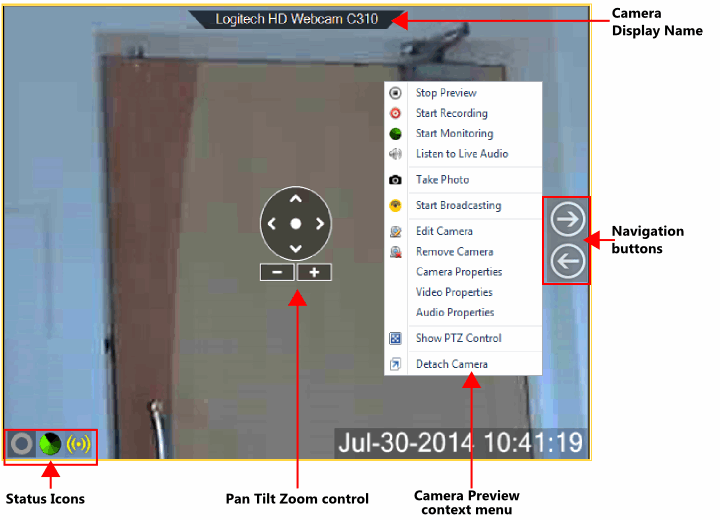
Camera Display Name
This is the name of your IP camera or Webcam. This is configured in the Add Camera dialog. You don't have to always display the camera name. Single click on a Preview window to view or hide the Camera display name control.
Navigation buttons
Navigation buttons will be displayed when you hover mouse pointer over the preview window and cameras added in application are more than the selected Camera Layout. Click the Navigation buttons to cycle cameras in the preview window.
Camera Preview context menu
- Start, Stop Preview: When you start the preview, the camera connects to the IP address that is specified in the Add Camera dialog. Start Preview will toggle with Stop Preview. If you don't want to see the live camera preview, use Stop Preview and camera will be disconnected from the application.
- Listen to Live Audio: You can listen to live audio playback from the selected audio device.
- Start Recording: Use this option to start and stop recording manually. This option allows you to record an important event while it occurs and play it at a later time.
- Start Monitoring: Begin the motion detection and your selected camera alerts.
- Take Photo: Capture images manually.
- Start Broadcasting: Start and stop the transmission of a live video stream over the network.
- Edit Camera: Use the Edit Camera option to update the Camera settings.
- Remove Camera: Delete the camera and it's settings from the camera list.
- Camera Properties: You can change camera properties like brightness, contrast, flickering, backlight compensation, and more.
- Video Properties: For Webcams, change video properties like frame rate, video dimensions, image compression.
- Audio Properties: You can change the volume level or associate a different audio device with the Webcam.
- Show / Hide PTZ control: Allows you to show or hide the PTZ control.
- Detach or Attach Camera: The preview from the main user interface can be detached and positioned anywhere on your screen. Right click on the preview window and select 'Detach Camera', then drag and position the detached camera preview on to the screen you want. To attach camera preview back to the application, select 'Attach Camera'.
Pan Tilt Zoom (PTZ) control
This option allows you to control movements of your IP Camera or Webcam, if it supports PTZ. Depending upon the camera model and its capabilities you can Pan (using left and right arrows), Tilt (using up and down arrows), Zoom (using plus '+' and minus '-' buttons) to the desired position. If you want to reset your camera to the original position, click on the centered Reset button.
Security Monitor Pro provides a digital zoom, even if it is not supported by your camera. In optical zoom the lens is extended to magnify your subject. Digital zoom crops your image and magnifies the result of the cropping. The image looks closer because it has been expanded. Image quality is reduced in digital zoom.
Status Icons
Status icons allows to check which actions are running for the selected camera and quickly start and stop the actions.
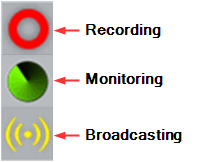
When an action is not running then the respective status icon is shown in disabled state.
|