Configuring Broadcasting Settings
Broadcasting lets other users connect to the PC running Security Monitor Pro and view live video. The number of users that can connect is limited by the bandwidth of your Internet connection and the resources of the PC. Broadcasting uses advanced Windows Media streaming technology to provide you with the best quality media broadcasting.
To configure broadcast settings, click Camera >> Manage Cameras >> Edit Camera >> Broadcast.
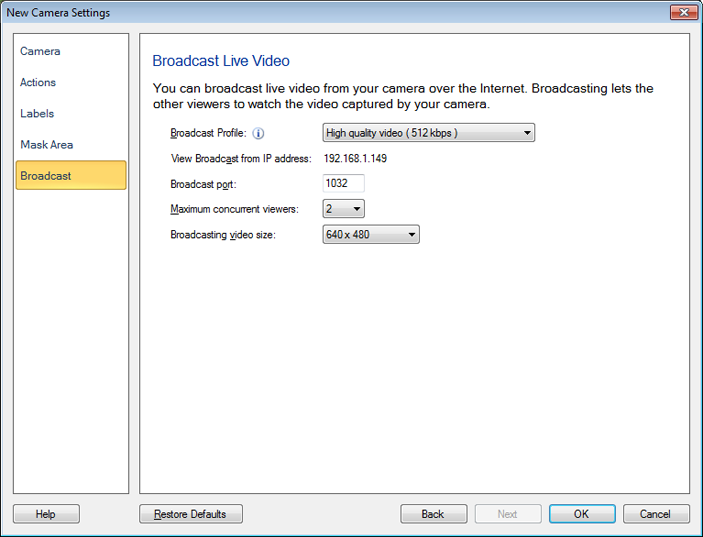
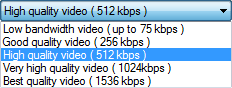
Broadcast Profile: You can select the appropriate broadcast profile from the drop-down menu.
View broadcast from IP address: All the IP addresses configured for your machine will be listed in this drop down. By default, the first IP address of your computer will be selected. If multiple IP addresses are not configured then only Primary IP address will be shown in a form of label. Select the IP address from which you want to Broadcast. Note: User can connect to this machine using anyone of the IP address listed in this drop down.
Broadcast Port: Security Monitor Pro will automatically fill in a port number. The first camera to start broadcasting will default to port 1030, the next 1031, and so on. You can choose different ports, if you prefer. Two cameras can not broadcast using the same port. Many Internet Service Providers (ISPs) block low-numbered ports (below 1024). If this is the case with your ISP, you will need to select higher-numbered ports. Security Monitor Pro will warn you, if you have selected a port that is being used by another program.
Maximum concurrent viewers: This is the number of other computers that can simultaneously view the video broadcast from Security Monitor Pro. This maximum number of viewers is set according to the bandwidth available.
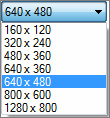
Broadcasting video size: While Broadcasting, video size will be resized to the selected dimension from the following drop down:
Broadcast from Multiple cameras
To actually start the broadcast, click Broadcast >> Start Broadcasting.
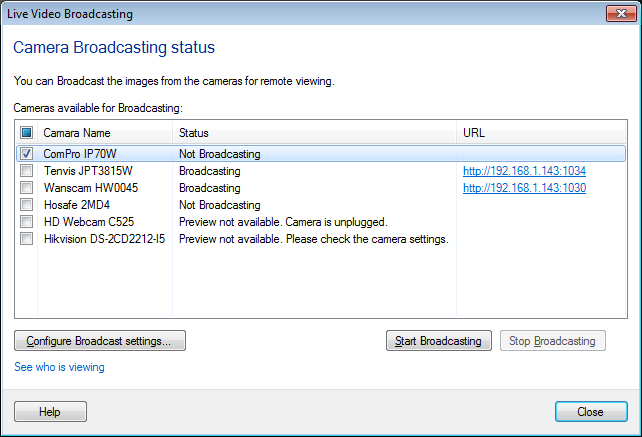
You will see a list of cameras and their status. You can transmit a live broadcast from one, a set of, or all cameras. By clicking on Configure Broadcasting settings, you can select the broadcast profile, maximum number of concurrent viewers and the port number. Each camera must be configured separately. You also have the option to Stop Broadcasting from this dialog screen.
To view the Broadcasting in the Media player, click on the respective URL. You can also copy the Broadcasting URL. To copy the URL, right click on the URL and select Copy URL.
|