Configuring Notification Settings
The Notification action is an effective way to monitor remotely. Whenever an alert is triggered, either on motion or license plate detection, Security Monitor Pro immediately sends out an email and SMS notifications to you. For regular interval monitoring, only email notifications can be sent. You can also choose to include JPEG photos of the activity that triggered the alert, within the e-mail body.
To configure Notification settings, click Add Camera >> Actions >> Configure button of Notifications action 
E-mail notifications
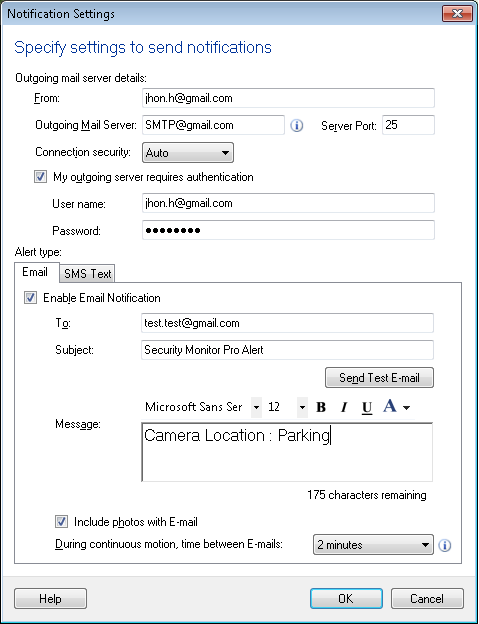
Specify a valid e-mail address in the From and To fields. Using a comma (", ") you can specify more than one email addresses in the To field. Examples of valid addresses are address@company.com or "Friendly Name" <address@company.com>. You can enter the Subject.
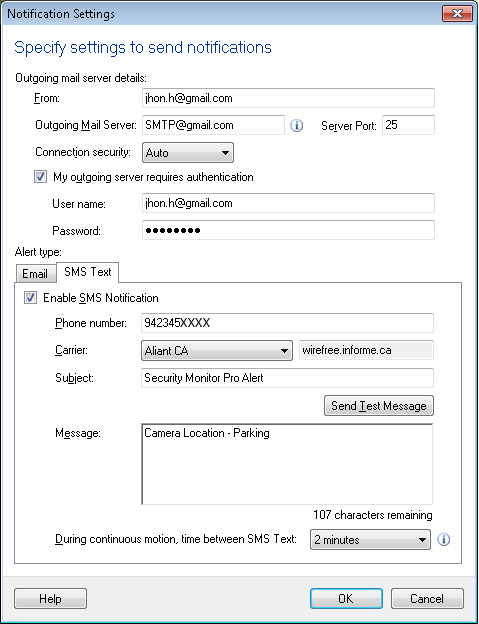
Specify valid mobile numbers in Phone number field. Using a comma (", ") you can specify more than one phone numbers for the selected Carrier.
Sending notifications using an Outgoing Mail Server
All ISPs should provide configuration instructions for sending and receiving e-mail using an e-mail client like Microsoft Outlook. The instructions also contain the address of the outgoing (SMTP) mail server.
In the Outgoing Mail Server option, specify the name or address of the outgoing mail server. Most outgoing mail servers use Port 25 for communication. If your ISP's outgoing mail server uses a different port then specify it in the Port option.
You can select the Connection security to ensure the security of your e-mail. If the outgoing mail server asks you to log in before sending e-mails then check the Outgoing mail server requires authentication option. Specify the login information in the User Name and Password options.
Testing notification Settings
To test the email alert, you can use the Send Test E-mail option after specifying the valid e-mail addresses in the From and To fields.
To test the SMS alert, you can use the Send Test Message option after specifying the valid phone number.
Customize notifications
The E-mail Notification alert lets you send e-mails with an attached photo and SMS Notification will simply send a text message. You can include photos only with the E-mail notifications. After this action is selected and configured, you can start monitoring.
On Motion or license plate detection
If Include photos with Email is checked then on motion or license plate detection, Security Monitor Pro will include a photo in the e-mail notification. If you don't want to include photos then uncheck this option.
For motion detection, you can select N minutes from the drop down and set the interval between notifications. This will help you to limit the number of notifications received.
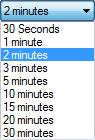
When a motion is detected then an email or SMS will be sent as per the notification type selected. Application waits for N minutes and will send the notification if a motion is detected after N minutes.
At regular intervals
If you are monitoring at regular intervals, Security Monitor Pro will always include 1 photo in the e-mail notification. SMS notifications can not be sent for regular interval monitoring.
Get Notified when the camera gets disconnected during monitoring
Get a notification when the preview of IP camera or Webcam gets failed. Preview of IP Camera can get failed when either camera gets disconnected, camera settings are updated, etc. Webcam preview can be failed when it gets unplugged or USB Port error occurs. During monitoring, if camera preview gets failed then a preview failure E-mail and SMS will be sent. When preview is failed and:
Notification sending is in progress then the application will send the current E-mail with the photos and a text message. After sending this, a preview failure E-mail and SMS will be sent.
Notification sending is not in progress then the application will only send a preview failure notification.
|