General Settings
The General section of the Application Settings dialog controls the behavior of the program when it is launched for the first time, when the application is minimized or restarted, network failure and general appearance of the application.
To configure General Settings, click Tools >> Application Settings >> General.
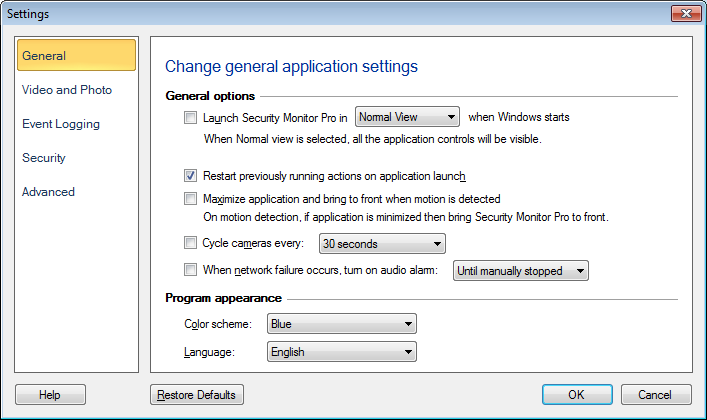
Launch Security Monitor Pro in: This option saves your time by automatically launching the application when you start your PC.
Normal view: In Normal view all the application controls including the toolbar and menu bar will be visible.
Full Preview: When windows launches, the application will start in Full Screen Mode. Full Preview hides the toolbar and menu bar. Only the camera preview area will be visible.
Hidden mode: Hide Security Monitor Pro when configured to be launched at Windows startup. In Hidden mode, Security Monitor Pro will run in the background. You can access the program using the hot key combination.
When Security Monitor Pro launches, restart the previously running actions: When this option is checked then whenever Security Monitor Pro launches, the actions [Monitoring actions, Video Recording, Broadcasting] which were running for the cameras before closing, will be restarted.
When application is minimized and motion is detected then maximize the application: When application is minimized and motion is detected then always bring Security Monitor Pro to front. This option will get automatically unchecked, if application is maximized twice within 5 seconds and after 2nd launch if the application is minimized within 2 second.
Cycle cameras every n seconds: If you have more than two cameras installed in Security Monitor Pro and wish to observe the feeds using the Preview, you can check this box and pick a cycle rate. Security Monitor Pro will automatically swap the cameras at the interval you select, letting you keep an eye on all your cameras
When network failure occurs, turn on audio alarm: This option turns on the audio alarm as soon as the network is disconnected. By default the audio alarm will run until manually stopped. The audio alarm will stop when network connection becomes available.
Program Appearance
- Color Scheme: The theme is the appearance of the application window. You can apply different color coordinated themes using the Color Scheme dropdown list, to make the application look more appealing. The default color scheme is Blue.
- Language: The language in which the application interface is displayed can be changed using the Language dropdown. When the language is changed then the Menus, Dialog boxes and Window titles will be displayed in the selected language.
|