Understanding User Interface
Understanding the User Interface
The application Interface is user-friendly and provides quick access to all the important functions.
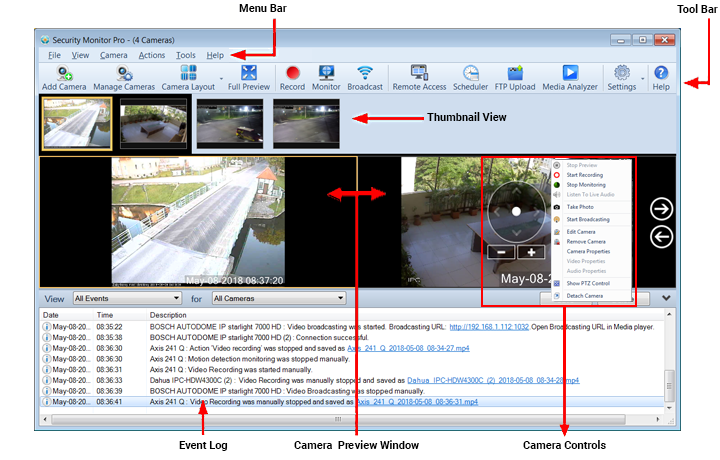
All the application features of Security Monitor Pro can be accessed from the Menu Bar.
The Tool Bar displays the most often-used features.
A small live preview of each camera is displayed for quick access.
Each camera is added in a seperate preview window. You can select a Camera by clicking on this preview window. Selected camera is shown with an orange border around the preview window. To change the number of cameras displayed, click View >> Camera Layout.
You can access and control the camera previews using PTZ, context menu. When you right click on the camera window, a context menu appears. Adjust the view of your camera using PTZ control. Single clicking on a camera preview window will show or hide the PTZ control.
Event Log
The Event Log records all significant events for each camera such as monitoring actions, recording, broadcasting, FTP upload etc. It allows you to view the actions that occur for each camera in a chronological order. You can save the Event log for a specific camera or all cameras added in Security Monitor Pro. They can serve as records for legal purposes.
When you save the log, the Date and Time is specified as the file name.
|