| Text Speaker: Basic Operation |
Basic Operation
This chapter will give a brief overview of how to open a file and have Text Speaker speak it.
- Click File >> Open.
- Navigate to the file you would like to hear and select it, then click the Open button. The file is added to the File List, and its text is displayed in the Text Display area.
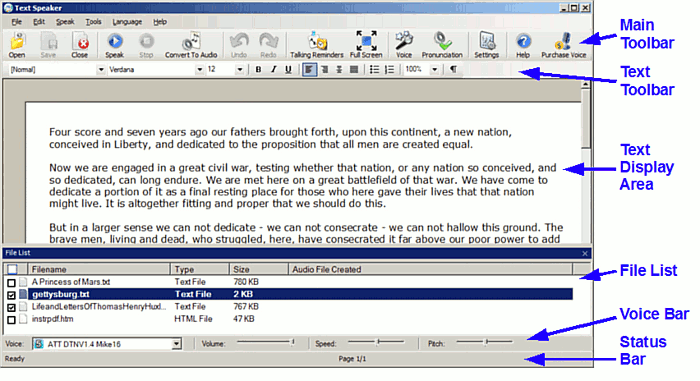
- To hear the file read from the beginning, click the Speak button or Speak >> Speak Current File.
- To close a file, select it and click File >> Close, or right-click on it and select Close from the menu that appears.
To use the entire screen for speaking and editing, you can switch to Full Screen mode. Click Tools >> Full Screen. In Full Screen mode, the menus and standard toolbars are hidden, and all that is visible is the document and a small Full Screen Toolbar:

When working in Full Screen mode, only the right-click menu, Full Screen Toolbar, and keyboard shortcuts can be used to control the program.
When the mouse pointer is moved to the bottom of the Full Screen area, a title bar and status bar appear:

This can be very helpful if you want to check the file name or the status of a long process. In the above illustration, conversion of this file to MP3 is 1% complete.
To leave Full Screen and return to the normal program window, press Esc or click Restore on the toolbar.
For more detailed instructions, see:
|