|
Welcome to Text Speaker
Turn any text into audio with natural sounding voices. Text Speaker can read your documents aloud in a clear, human-sounding voice, or you can convert them into MP3 files for listening anywhere. Text Speaker supports speaking in English, German, French, Italian and Portuguese languages. Hear documents spoken in your native language.
When you are proofreading, hearing the words aloud makes it easy to catch common typing errors. You can adjust the pitch, reading speed, and the pronunciation to make the perfect listening experience. When converting a document into an audio file, Text Speaker can play an MP3 music file in the background along with the text it reads. Background music adds a real professional touch! We have even added talking reminders. You will never miss another appointment with talking reminders! Your computer will speak and display a message at any time you select. You can repeat the message at any interval you choose, from one minute to one year.
There are endless uses of Text Speaker. You can listen and purchase the high quality professional voices.
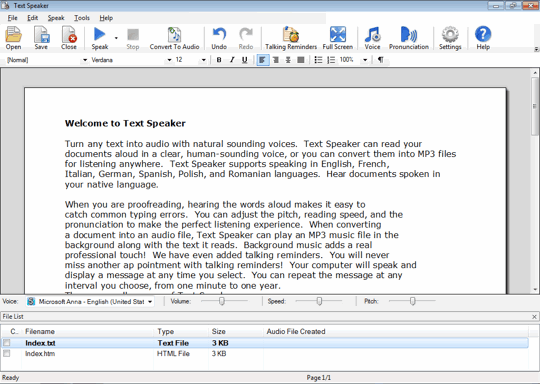
Text Speaker User Interface
 |
Getting Started:
|
|