Application Settings
For effective use of the program, you can configure the application settings.
Click Tools >> Settings to enable the following features:
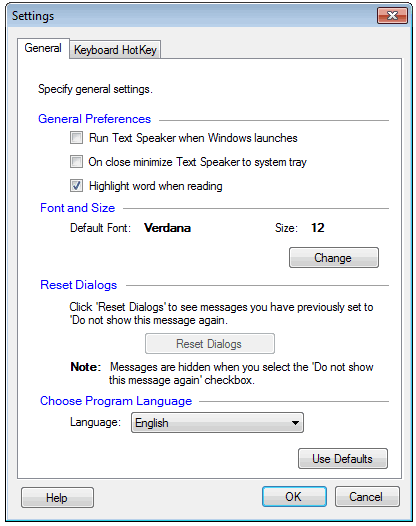
General Settings
General Preferences
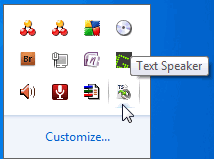
These are the startup options which instruct Text Speaker to perform certain operations. You can choose to run Text Speaker when windows is launched. When you close the application window, you can choose to show it as a system tray icon. Right click this icon to quickly open or exit Text Speaker. To restore the program, double-click the system tray icon.
When listening to text in the document, you may sometimes get visually distracted. There is an option Highlight word when reading which can be enabled so that each word is highlighted as it is read aloud. This option makes it easy for you to follow along with your text.
You can customize the font and size of the text in the Text Display Area.
There are various help dialogs that appear while using the application. If these dialogs are disabled, you can enable them to read the messages again by clicking the Reset Dialogs button.
The language in which the application interface is displayed can be changed with the Language dropdown. This setting changes the language of the text along with the Menus, Dialog boxes, and Window titles.
Note: The language in which the text is spoken does not depend on interface language setting. High quality professional voices in English, French, German, and Spanish are available at DeskShare.
Keyboard Hotkey Settings
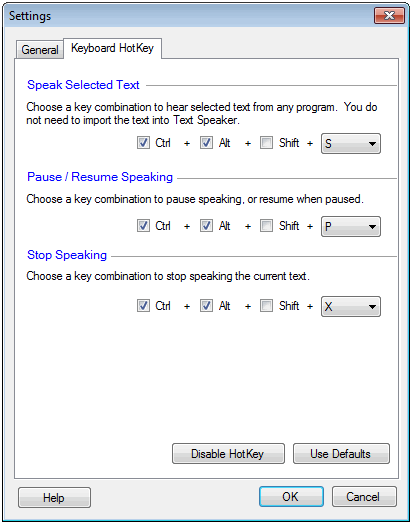
One of the great features of Text Speaker is that any document can be read aloud without having to importing it. Just select the text in your file opened in any application, and press the Text Speaker hotkey to listen to it.
To set the hotkeys, choose a combination of modifier keys (shift, alt, and ctrl) with any alphabet or function key. Keyboard hotkeys are available to start, pause, resume, and stop the speech.
|