Listen to your Documents
The main purpose of Text Speaker is to read aloud your documents in human-sounding voices. To start listening, import the documents in Text Speaker and have them read aloud.
Click Speak >> Speak Current File for the document to be read from the beginning. As each word is spoken, it is highlighted so that you follow along with the text while listening.
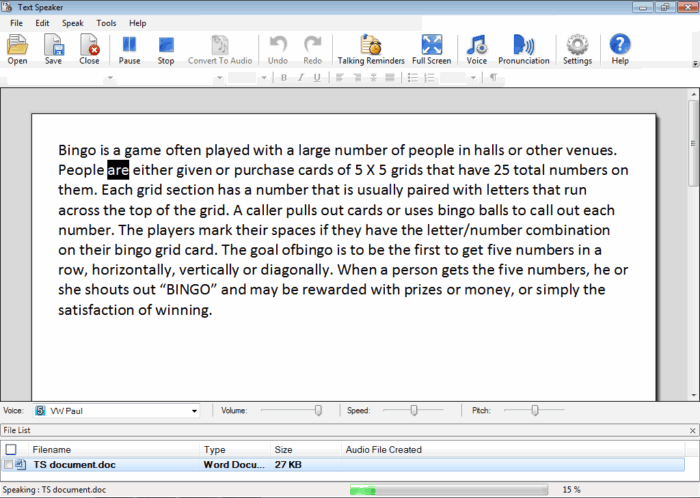
In addition to reading the whole document, you have options to listen to only a part of it.
You can choose to listen to the document from the current location of the cursor. Position the cursor to the location where you want the reading to start.
Click Speak >> Speak from Current Cursor Position. Text Speaker begins reading from your cursor to the end of the document, or until you press stop.
Another option is to select a part of your document and have it read aloud. In the document, select the content and click Speak >> Speak Highlighted Text.

You can also listen to documents without importing them to Text Speaker. Open a document and select the entire text or a part of it. Use the keyboard hotkeys to start listening to the document. Text Speaker needs to be running to use the keyboard hotkeys.
|