Wipe Transitions
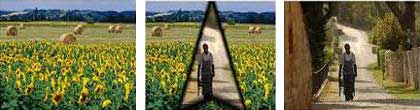
Video Edit Magic provides a variety of Wipe Transitions. All wipe transitions change over time. These transitions are sorted into 11 categories so that they can be located and managed easily. In a Wipe transition, the old image is smoothly replaced by the new one, as if the first image was painted on top of the second and a sponge (or several sponges) wiped it off.
Transition Mask JPEG is displayed under the General tab in the settings dialogue; Scale, Origin and Replicate under the Dimension tab and Border Width, Border Smoothness and Border Color under the Border tab.
Every transition under a wipe transition category is known as a mask. A set of common settings can be specified for every transition. The settings are:
Transition Mask Property
This option lets you select among various wipe transitions. For example, a Triangle Wipe involves one or more triangles moving over the first clip, replacing it with the second. Every category includes variations. For example, the Triangle Wipe category contains all triangle-type transitions, with different starting positions, different numbers of triangles,
Transition Mask JPEG
A transition mask image specifies a JPEG file that is used as a transition. Areas that match in color to the selected JPEG will transition to the second image before other areas. To use a Transition Mask JPEG transion, select Transition Mask JPEG, browse for the JPEG file and click OK.
Scale
Scale defines the percentage of scaling to be applied to the original transition. A transition can be scaled / stretched horizontally or vertically by specifying the horizontal and vertical scale values respectively.
Origin
Origin defines the center from where a transition originates. The X (Horizontal) and Y (Vertical) axis of a transition can be specified by setting the origin values. Alternately, the origin can also be roughly set by dragging your mouse over the origin pad.
Replicate
Replicate defines the number of times a transition is repeated horizontally and / or vertically. Smart usage of replicate can provide you with a completely new transition. The illustration below shows a Wedge, Left transition which has been replicated twice vertically:

As you see, the transition is now a "double wedge".
Border Width
Border width determines the border width in pixels of a transition.
Border Softness
Border softness reduces sharp border edges of a transition.
Border Color
Border color specifies the color to be given to the border of a transition. To set the border color you may:
- Select a primary color.
- Select the Red, Green and Blue composition of a color.
- Select the color from the palette by clicking the Custom button.
Swap video tracks for this transition
Normally, Video Track 2 replaces Video Track 1 in a Wipe. Check this option if you want Video Track 1 to replace Video Track 2.
|