Split vidéo
En utilisant le Split vidéo la commande, vous pouvez diviser tout clip d'animation en petits morceaux. Contrairement aux Détection de scène Split vidéo vous permet de choisir la position exacte de fractionner à manuellement. Cela peut prendre plus de travail, mais il vous permet de diviser un clip aux points qui ne sont pas des changements de scène.
Clips de seul film sur le Storyboard peuvent être fractionnés. Vous ne peut fractionner des fichiers vidéo dans le Vidéo et la Collection de Photos. Vous peut Fractionnez les clips qui ont été créés à l'aide de détection de scène. Encore images (images bitmap comme les fichiers GIF et JPEG) ne peuvent être scindées.
Créé à l'aide de clips Split vidéo fonctionne exactement comme tout autre clip d'animation et peut être traîné, couper, copié et collé. Vous pouvez ajouter des effets et la musique à eux.
Pour fractionner un clip, faites un clic droit sur elle et sélectionnez Split vidéo... dans le menu. Le Split fenêtre apparaît.
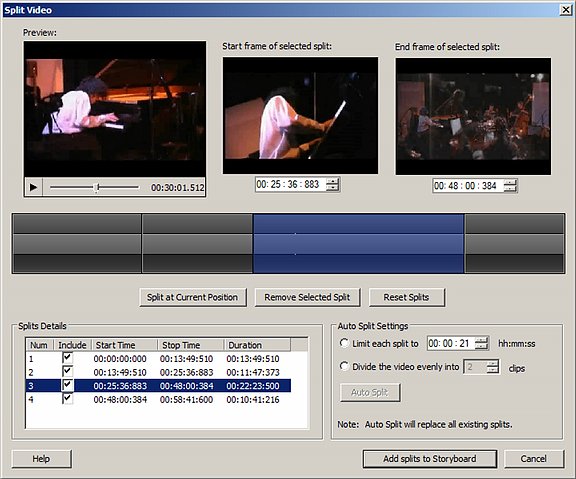
Un « split » est un segment du clip vidéo, avec une heure de début définie et l'heure de fin. Lorsque la Ajouter des fractionnements de Storyboard bouton est enfoncé, tous les fractionnements d'inclus seront ajoutés à la table de montage séquentiel comme clips vidéo distinct, et le clip original qui vous fractionnez est supprimé.
Il y a trois façons de créer des fractionnements:
- L'aperçu
- Le délai de prescription
- Auto Split
Fractionnement à l'aide de l'aperçu
L'aperçu comprend la principale zone d'aperçu, le Démarrer la trame de split sélectionné, Et le Cadre de fin de split sélectionné. Lorsque vous cliquez sur le Split Button, la partie de l'élément qui est entre la trame de départ et le cadre de la fin est marquée comme une scission. Vous pouvez modifier les temps de début et la fin de la scission en utilisant les contrôles de temps sous Démarrez Frame et Fin Frame.

Vous pouvez également fractionner le clip à tout moment en déplaçant le marqueur de la position le Aperçu. Vous pouvez déplacer le marqueur, soit en faisant glisser la souris, ou en jouant et en la suspension de l'aperçu. Chaque fois que vous cliquez sur Split, le clip est divisé à la position actuelle du marqueur.
Fractionnement à l'aide de la barre de temps
Dans le Centre de la Split fenêtre est le délai d'attente:
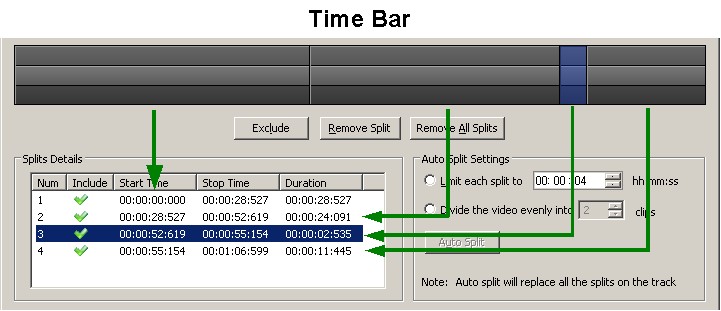
Dans l'illustration, le délai de prescription montre quatre fentes. Split 3 est sélectionné. Notez que le délai de prescription est divisée en trois couches. Les couches externes de couleur plus foncée peuvent être utilisés pour la sélection. En cliquant sur leur sélectionné la scission sur que vous avez cliqué. Cliciing sur la couche interne surélevée de la barre de temps fractionne immédiatement le clip à ce moment-là. Vous pouvez également sélectionner une scission en cliquant sur sa ligne dans les Détails de Split. La scission sélectionnée est en bleue dans le délai d'attente et les détails.
Lorsque vous déplacez la souris sur la barre de temps, la prévisualisation affichera le point correspondant à la position de la souris. C'est, si vous avez un clip de 2 minutes et vous déplacez la souris au-dessus du centre exact de la barre de temps, la prévisualisation affichera le cadre à la position 01:00 minute.
Fractionnement à l'aide de Split Auto
À l'aide de la scission de l'Auto, vous pouvez diviser le clip en morceaux basé sur toute leur longueur. Vous avez deux choix:
- Si Limite chaque split à est sélectionné, Auto Movie Creator va diviser le clip en morceaux de même taille. Par exemple, si vous sélectionnez "00: 01:30" pour les heures, minutes et secondes (hh:mm:ss) de la longueur, votre clip sera divisé en morceaux de 90 secondes. Si elle ne divise pas uniformément, le dernier segment sera plus court que les autres.
- Si Diviser la vidéo uniformément est sélectionnée, vous pouvez couper le clip en morceaux qui sont tous exactement de la même taille. Juste choisir un certain nombre de clips de diviser la vidéo en.
Une fois que vous avez choisi votre Paramètres de Split auto, Cliquez sur Auto Split et le Détails de fentes zone et le délai d'attente montrera les fractionnements de nouvelles que vous avez créé. Note: Auto Split entraînera toute fractionnements manuelles que vous avez faits pour être perdus.
Inclusion/exclusion
Vous n'avez pas d'ajouter tous les fractionnements de Storyboard. Seulement les fractionnements inclus seront ajoutés. Pour exclure une scission, simplement sélectionnez-le puis cliquez sur le Exclure bouton. Si un split exclu est sélectionnée, le bouton change Inclure, et en cliquant sur qui s'inverse l'effet, causant la scission sélectionnée être inclus et ajoutée à la table de montage séquentiel.
Suppression des fractionnements
Pour supprimer une scission, simplement sélectionnez-la et cliquez sur le Supprimer Split bouton. Pour supprimer tous les fractionnements et de recommencer le processus, cliquez sur le Supprimer tous les fractionnements bouton. Ceci est différent de l'exclusion d'une scission, auquel cas elle est encore marquée comme une scission dans le Détails et sur la barre de temps, mais pas ajoutée à la table de montage séquentiel.
Ajout des fractionnements de Storyboard
Lorsque vous avez créé et inclus vos séparations, cliquez sur Ajouter des fractionnements de Storyboard. Le clip original sera remplacé par plusieurs clips, un pour chaque inclus split.
Combinant les fractionnements
Vous pouvez combiner certains les fractionnements que vous avez ajouté à la table de montage séquentiel dans un clip unique, qui peut aider lors de l'ajout effets, narration ou musique. |