Video aufteilen
Mit der Video aufteilen Befehl, Sie alle Movieclips in kleinere Teile aufteilen können. Im Gegensatz zu Szenenerkennung Split Video können Sie die genaue Position beim geteilt manuell auswählen. Dies kann Anspruch nehmen mehr Arbeit, aber es können Sie einen Clip an Punkten zu teilen, die Szene wechselt nicht sind.
Nur Videoclips auf dem Storyboard können aufgeteilt werden. Sie können keine Filmdateien in Teilen der Video und Fotos Sammlung. Sie können Clips, die erstellt wurden mit Szenenerkennung aufgeteilt. Standbilder (Bitmap-Bilder wie GIF- und JPEG-Dateien) können nicht aufgeteilt werden.
Clips mit erstellt Video aufteilen funktionieren genau wie alle anderen Movieclip und kann gezogen, schneiden, kopiert und eingefügt. Sie können Effekte und Musik zu ihnen hinzufügen.
Um einen Movieclip zu teilen, mit der rechten Maustaste darauf, und wählen Sie Split Video... aus dem Menü. Die Split Fenster wird angezeigt.
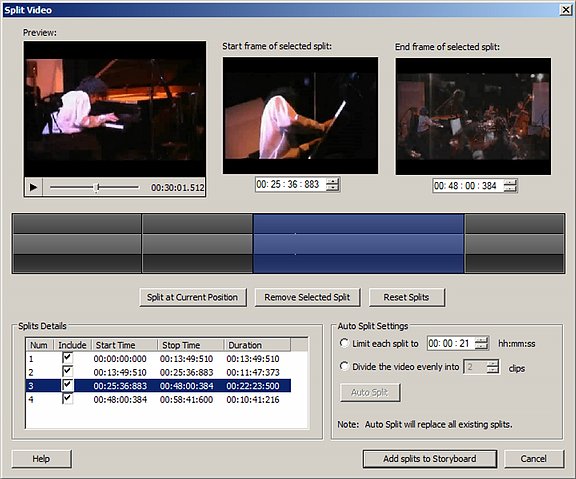
"Split" ist ein Teil des Videoclips, mit einem definierten Startzeit und Endzeit. Wenn die Teilungen zu Storyboard hinzufügen gedrückt wird, alle inbegriffen Teilungen werden als separate Videoclips zum Storyboard hinzugefügt und der ursprüngliche Clip, den Sie teilen entfernt werden.
Es gibt drei Möglichkeiten, um Teilungen zu erstellen:
- Die Vorschau
- Die Zeitleiste
- Auto Split
Aufteilung der Vorschau
Die Vorschau enthält die wichtigsten Vorschau-Bereich, der Anfangsbild von ausgewählten split, und die Endbild der ausgewählten split. Beim Klicken auf die Split Schaltfläche, den Teil des Clips, die zwischen dem Anfangsbild und Endbild ist ist als eine Spaltung gekennzeichnet. Sie können den Beginn und das Ende Mal der Split ändern, mithilfe der Zeitsteuerelemente unter Anfangsbild und Endbild.

Sie können auch teilen Sie den Clip zu jedem Zeitpunkt durch verschieben den Positionsmarker der Vorschau. Können Sie den Marker entweder durch Ziehen mit der Maus, oder spielen und Anhalten der Vorschau. Wenn Sie klicken Split, der Clip gliedert sich an der aktuellen Position der Markierung.
Mithilfe der Zeitleiste aufteilen
In der Mitte der Split Fenster ist die Zeitleiste:
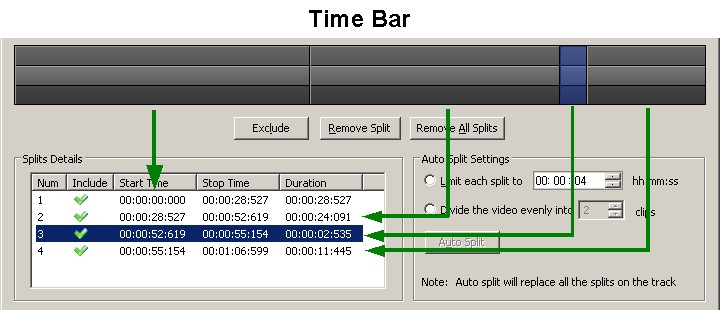
In der Abbildung zeigt die Zeitleiste vier Zwischenzeiten. Split 3 ausgewählt ist. Beachten Sie, dass die Zeitleiste in drei Ebenen unterteilt ist. Die äußeren Schichten dunkler gefärbten können für die Auswahl verwendet werden. Anklicken sie ausgewählt, die Spaltung, die, der Sie angeklickt haben. Cliciing auf die erhöhte innere Schicht über der Zeitleiste teilt den Clip sofort zu diesem Zeitpunkt. Sie können auch auswählen, eine Spaltung durch Anklicken einer Zeile in der Split-Informationen. Die ausgewählten Teilen ist sowohl in der Zeitleiste und die Details blau gefärbt.
Wenn Sie die Maus über die Zeitleiste verschieben, wird die Vorschau den Punkt entsprechend der Position der Maus angezeigt. Das heißt, wenn Sie einen 2-minütigen Clip, und Sie die Maus über den genauen Mittelpunkt des die Zeitleiste bewegen, zeigt die Vorschau den Rahmen an Position 01:00 Minuten.
Mit Auto Split aufteilen
Auto Split verwenden, können Sie den Clip in Stücke auf der Grundlage ihrer Länge aufteilen. Sie haben zwei Möglichkeiten:
- If Jede Teilung zu begrenzen ausgewählt ist, Auto Movie Creator teilt den Clip in Stücke der gleichen Größe. Zum Beispiel, wenn Sie wählen Sie "00:30" für die Stunden, Minuten und Sekunden (HH) der Länge, wird Ihr Clip in 90 Sekunden Stücke geteilt werden. Wenn es nicht gleichmäßig aufteilen, wird das letzte Segment kürzer als die anderen sein.
- If Das Video gleichmäßig aufteilen ist ausgewählt haben, können Sie den Clip schneiden Sie in Stücke, die alle genau gleich groß sind. Wählen Sie einfach eine Reihe von Clips, um das Video zu teilen.
Sobald Sie gewählt haben Ihre Auto Split-Einstellungen, klicken Sie auf Auto Split und die Teilungen Informationen Bereich und Zeitleiste zeigt die neue Splits, dass Sie erstellt haben. Hinweis: Auto Split wird manuelle Splits verursachen, die Sie vorgenommen haben, verloren.
Einschluss-/ Ausschlussregel
Sie müssen nicht alle die Splits zum Storyboard hinzuzufügen. Nur eingeschlossene Teilungen werden hinzugefügt. Um eine Spaltung auszuschließen, einfach wählen Sie sie aus, und klicken Sie auf die Ausschließen - Taste. Wenn ein Ausschluß aufteilen ausgewählt ist, ändert sich die Schaltfläche Enthalten, und klicken auf, die die Wirkung die ausgewählte Spaltung zu verursachen umkehren wird inbegriffen und zum Storyboard hinzugefügt.
Splits entfernen
Entfernen eine Teilung, einfach wählen Sie sie aus und klicken Sie auf die Entfernen Sie Split - Taste. Klicken Sie zum Entfernen aller Teilungen und starten Sie den Prozess über, die Entfernen Sie alle Splits - Taste. Dies unterscheidet sich von eine Spaltung ohne, in diesem Fall ist es immer noch als eine Abspaltung in markiert die Informationen und auf der Zeitleiste aber nicht zum Storyboard hinzugefügt.
Hinzufügen der Splits zum Storyboard
Wenn Sie erstellt und enthalten die Teilungen haben, klicken Sie auf Teilungen zu Storyboard hinzufügen. Der ursprüngliche Film-Clip von mehrere Clips ersetzt werden, eine für jedes enthaltene aufgeteilt.
Das Kombinieren der Teilungen
Sie können kombinieren einige der die Splits haben Sie zum Storyboard in einen einzelnen Clip hinzugefügt, die helfen können, wenn Sie hinzufügen Effekte, Erzählung oder Musik. |