DeskShare homepage Deutsch   Français    Español   Portuguese   
.
  Resources  
.
Articles
Newsletter
Tutorials and Manuals
Special Offers
 
 Articles
1. How to Make Good Screen Recordings
2. Recording a Region of Your Desktop Screen
3. Convert PowerPoint to AVI
   
 Newsletter Subscription
Get the inside track on all the hot news regarding DeskShare products, new releases, special promotions and discounts.
Subscribe to our DeskShare News.
  My Screen Recorder v2.65
   
   
  Convert PowerPoint to AVI
   
     
  A power point presentation converted to a standard AVI file can be an effective tool to get your ideas across when you can't be physically present.  Such a presentation can be shown on any media player.  The user does not need to install PowerPoint or a PowerPoint player.  
     
  This article describes how to use My Screen Recorder to convert your PowerPoint presentations to AVI format.  You will also learn how to edit your recorded AVI video and add audio narration with video editing software such as Video Edit Magic.  
     
  We will begin by converting your PowerPoint presentation to AVI format.  
 
1. Open the PowerPoint presentation you would like to convert to AVI.  If you insert a blank slide at the beginning and end of your file, you can smoothly capture the beginning and ending of your show.  
2. Start My Screen Recorder.  Make sure that the recording region option is set to the Full Desktop by clicking on Region in the File menu. (CTRL + D).  
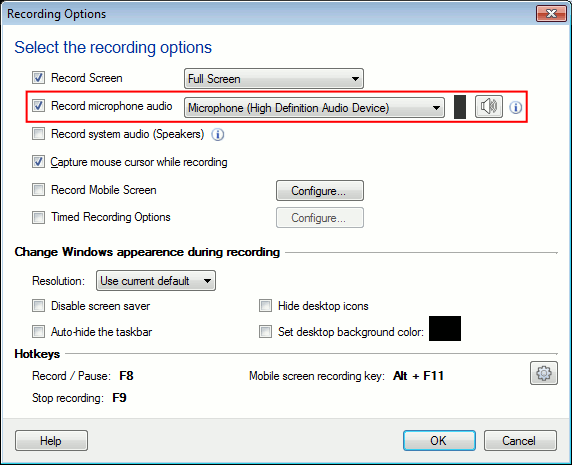
3. Click the Record button on the toolbar to launch the Recording Options window.  If you don't want to record the PowerPoint audio, uncheck the option Record audio while recording video.  You will need to setup PowerPoint so check the Pause before recording starts box.  Click on OK.  


4. In PowerPoint, start the slide show by selecting View show from the Slide Show menu.  You can also use the shortcut key - F5.  
5. Now, start the recording by using the keyboard shortcut.  This shortcut is F8 by default.  Run the slide show at an appropriate speed (leave the audience enough time to read the text and look at any drawings or tables).  My Screen Recorder will be recording in the background.  
6. When your slide show is over, stop the recording using the keyboard shortcut which is F9 by default.  


To record PowerPoint audio:


a. Open Windows Volume Control.  You can double click the Volume icon in the system tray or open it from the Start menu (Start > Programs > Accessories > Entertainment > Volume Control).  
b. On the Options menu, click Properties.  
c. Select the Recording option.  
d. Click OK.  
e. By default, the Microphone slider is selected.  Depending upon the system configuration you have, select the Mono Mix, Stereo Mix or the Line-in slider by checking the appropriate "Select" option.  Try experimenting a bit with these three options to find out which works the best for you.  
 
     
  Now let us edit your AVI video with video editing software:
  The following steps describe how to add audio narration to the video using Video Edit Magic.
 
   
1. Start Video Edit Magic and open a new project by clicking on New Project under the File menu (CTRL + N).  Import your recorded presentation from your hard drive by clicking on Open File in the File Menu (CTRL + I).  
2. Drag the video clip on to the Timeline.  
3. If you do not want to retain the recording's original audio track (if any) and want to add narration of your own, then click on the recordings audio component in the audio track and press the Del key.  
4. Connect a microphone to your PC.  
5. Select Narration from the Tools menu.  Position the Seek Slider on the Timeline where you want to start narrating and click Record.  Click on Options to change the Audio Device and the Audio Compressor used for recording.  
6. Click the Record button, and start narrating into the microphone.  When you're done narrating, press Stop.  You will be asked for a file name, and the narration will be saved as a file, and added to the Timeline and the Media File Collection.  You can record more narration by clicking Record again.  When you're finished narrating, click Close.  
7. You can also add effects and transitions to your video.  You may need to line up the audio and video on the Timeline to synchronize them before saving the Project.  
 
   
  We have published several articles on editing video using Video Edit Magic, such as Useful Video Editing Techniques.
   
  Saving the Edited Video:
  To make the final video:
 
1. On the File menu in Video Edit Magic, click on Make Movie.  You will see the following screen.  
   
  Video Edit Magic - Make Movie Wizard Screen
   
2. Select the AVI option.
3. Click on Next.  You may configure the AVI settings here.
4. Click on Next to start the Make Movie process.
   
  You can of course do much more with Video Edit Magic like adding professional effects and convert to your recorded video presentation to a format more suitable for distribution on VCD, DVD or even the Internet.  
   
 
PRODUCTS | PURCHASE | DOWNLOADS | SUPPORT | RESOURCES | PARTNERS | ABOUT DESKSHARE | CONTACT US
deskshare logo  Copyright DeskShare Incorporated. All rights reserved. Privacy Policy