DeskShare homepage Deutsch   Français    Español   Portuguese   
.
  Resources  
.
Articles
Newsletter
Tutorials and Manuals
Special Offers
 
 Articles
1. Creating Screen Recordings For Web Streaming
2. Reducing the File Size of Screen Recordings
3. Distributing Screen Recordings
4. Record Using Multiple Monitors
5. Record Streaming Audio
6. Record Internet TV and Internet Radio Shows
7. Automate Screen Recordings
8. Streamline Your Work with Auto Tasks
9. Save the Last Minutes
10. Cutting and Splicing Screen Recordings
11. Command Line Parameters
12. Distribute Screen Recordings as Executables
13. Draw on Screen
14. Adding Mouse Effects
   
 Newsletter Subscription
Get the inside track on all the hot news regarding DeskShare products, new releases, special promotions and discounts.
Subscribe to our DeskShare News.
  My Screen Recorder Pro v2.67
   
   
  Record Internet TV and Internet Radio Shows
   
     
  More and more TV and radio programming is available as Internet streams.  Whether it's a radio talk show, or your favorite how-to TV how, you don't want to miss it.  
     
  But what if you're away from your computer when your show is streamed?  Using DeskShare's My Screen Recorder Pro, you can record the show and play it back when you have time to watch it.  
     
  My Screen Recorder Pro combines the ability to start recording at a particular time with the ability to record video and audio a computer is playing.  Use both together and you can record any TV or radio show streamed over the Internet, and watch or listen when it's convenient for you.  
     
  It's very simple.  First I'll discuss Internet TV, and then Internet Radio.  
     
  Recording Internet Television Streams  
     
  Scheduling recording is very simple.  For instance, if you know you want to see a program that will be on C-SPAN at 3:00 PM, Tuesday, but you'll be at work at that time, here's how you would set up the recording.  First, click the Tools menu and choose Schedule Recording.  The Schedule Recording window opens.  
     
  Check Enable Schedule.  Set the Start recording at, and and record for times.  I'll start one minute before the show starts and record for 31 minutes.  I'll also check Tuesday, the day the TV program I'm interested in will be streamed.  
     
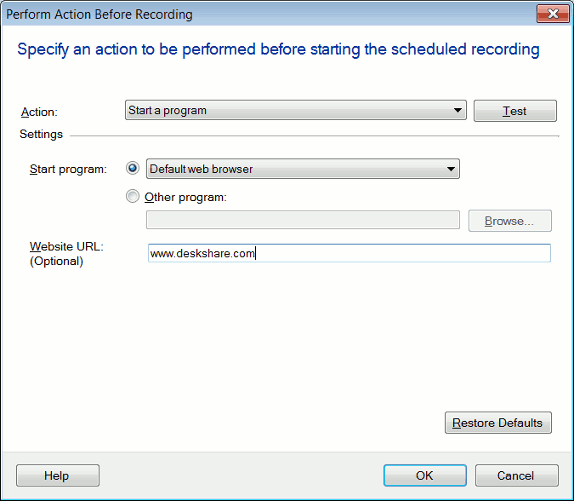
  You could choose to simply leave the Internet media stream running continuously, and just start and stop the recording at the right times.  However, this would mean that the sound and picture would be playing constantly while you're away, which uses a lot of Internet bandwidth for no reason, and it would be very easy to use the web browser for something else, or just have another program end up blocking your view of the program during the recording.  A better way is to use Launch a website and start recording.  
     
  To do that, I need to know the URL (the Internet address) of the show.  In this case, I navigated to the web page that shows C-SPAN.  


  I'll copy that URL from the Address Bar of the web browser into the Schedule Recording window's URL to launch area.  


  Now, at 2:59 on Tuesday, My Screen Recorder Pro will automatically launch my computer's default web browser, which will open the C-SPAN online streaming page, and then record what happens for 31 minutes.  
     
  Note:  in order to record the sound from the Internet stream, you should have Record From Speakers selected.  You can set this using the Audio Tuning Wizard.  When you're planning to record Internet streams, you may want to turn off your computer's speakers so the sound from the show doesn't play while you're away from the computer.  Do not turn down the volume using the Windows volume control, which will prevent My Screen Recorder Pro from recording it.  Use the actual switch or dial on the speakers.  
 
  Recording Internet Radio  
     
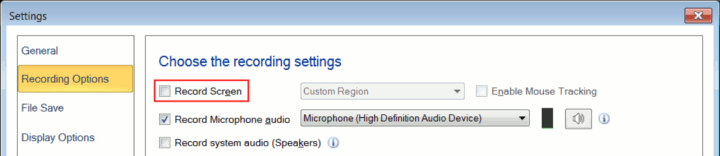
  Internet radio shows can be recorded exactly the same way as TV shows, with one difference.  When recording Internet radio shows, recording a video of the screen will only make the file larger than needed.  To turn off recording of video, you can simply click the Settings button on the tool bar, and then uncheck the Record video button.  The resulting recordings will have no picture, but all the sound recorded.  


  The radio show will be recorded as an AVI file.  Another DeskShare product, Digital Media Converter, can convert AVI files into an MP3 or WMA format for use with portable audio players.  
     
  With My Screen Recorder Pro you can watch Internet TV and listen to Internet radio shows, when you want and where you want.  
     
 
PRODUCTS | PURCHASE | DOWNLOADS | SUPPORT | RESOURCES | PARTNERS | ABOUT DESKSHARE | CONTACT US
deskshare logo  Copyright DeskShare Incorporated. All rights reserved. Privacy Policy