IP Camera Surveillance System
Keeping an eye on your home, business, or remote property is much needed to ensure security. An IP camera based video surveillance system offers 24/7 monitoring of your property from any PC in the world. You must consider the many varieties, options, and specifications available when choosing an IP camera. Before you buy an IP camera, you can consider the following functionalities:
- A wide focus camera
By using a wide angle lens, the IP camera has a maximum field of view. This helps to provide a live video of an entire monitored area within a single image.
- Auto day/night mode camera
The auto day/night mode feature allows the camera to automatically switch between color video capture in daylight conditions and light-sensitive black and white video capture in dark conditions.
- Picking lighting conditions
If the camera needs to be used in a wide variety of lighting conditions, you need an auto-iris lens that adjusts to the light.
- Pan, Tilt, Zoom (PTZ) capability
A PTZ camera is an IP camera with remote directional and zoom control. If you have a large area to monitor, you can focus on a particular region with PTZ control. You can select a camera with either digital PTZ or mechanical PTZ.
- Image clarity and storage space
If you want to view a larger area then you need a higher resolution camera. Higher resolutions provide more clarity and better image quality. But if you want to monitor a smaller area and do not want to see a detailed view, a camera with lesser resolution might do. Higher-resolution images also mean larger recorded video and snap files, thus taking up more storage space.
- Advanced features
If you simply want to view your IP camera from any location, you need either a PC or a mobile device like a PDA (Personal Digital Assistants) or cell phone with an Internet connection. Surveillance software can automatically start video recording when motion is detected. Special video software like Security Monitor Pro is used to control the video from IP cameras. It stores the video, sends email notifications, sounds alarms when motion is detected, controls PTZ movement, and much more.
Taking these factors into consideration, you can choose among many IP cameras available in market. Some of the popular manufacturers are Panasonic, Sony, Cannon, Toshiba, and DLink.
It's important to consider the compression method used by an IP camera. Compression reduces the size of the video files generated while monitoring. Since video files contain a huge amount of data, compression is required to reduce the storage and bandwidth requirements. The commonly used compression techniques are MPEG-4 and MJPEG. Let us try to quickly understand how these work.
MJPEG (Motion JPEG)
IP cameras using this type of compression can capture images up to a maximum of 30 frames per second. In MJPEG recording, each frame consists of a complete JPEG image. This is referred to as Motion JPEG. Compressing each frame as an individual image produces high picture quality. When compared with MPEG4, the bandwidth required for transmission and the disk space required for storage are both higher in MJPEG.
MPEG-4
The Moving Picture Experts Group (MPEG) is the organization that defined the standards for this format. With MPEG4, only a small fraction of the video frames are sent as a complete image. The information about the difference between the current frame and the previous one are actually transmitted, not the complete image. Frame to frame coding techniques are based on the knowledge that most frames are similar to the ones preceding and succeeding them. Most of these frames can be transmitted as differences between their neighbors which means, very less information has to be transferred. The result of sending only image changes is both, reduced bandwidth usage and storage space. However MPEG4 has a lower image quality when directly compared to MJPEG.
If you want your family and friends to watch the live feed, inform them your IP address and the port (if you have specified one) to which they can connect to. You may have to Configure Your Camera and PC For Internet Streaming.
Choosing MJPEG for Video Surveillance
Most IP cameras currently available are based on MJPEG which offers higher image quality.
In video surveillance applications that require storage of the video, MPEG4 is not as easy to deal with as MJPEG. To find a particular frame in MPEG requires first finding the reference frame with regard to which the changes in subsequent frames have been transmitted and then moving to the exact time period you would like. MJPEG is a less complicated compression. When you retrieve MJPEG video you can go to the exact frame you want very quickly and easily.
MJPEG (Motion JPEG) is the compression of choice for video surveillance because it has better image quality and shows graceful degradation at bandwidth constraint. MJPEG guarantees a defined level of picture quality, which is vital in most security applications.
Using Security Monitor Pro with your IP camera:
IP cameras can be accessed from any location using Internet and can provide live coverage of an event. However, you need surveillance software for advanced features like motion detection and alerts, email and other automated notifications. Security Monitor Pro is an uncomplicated and inexpensive application that turns your PC and IP camera into a sophisticated security system.
Once Security Monitor Pro is on guard, you do not have to personally monitor activities recorded by the IP camera or start the recording and alarms. It alerts you when motion is detected or at regular interval, depending on your choice. You can schedule Security Monitor Pro to start and stop monitoring at any set time. Monitor multiple devices including IP cameras and several USB cameras. Remote monitoring options like Live Video Broadcasting, FTP Uploading and E-mail Notifications with embedded images keep you informed on all motion events. You can view the event history using Event Logs. With Media Analyzer, you can quickly view the recordings and photos from within the application.
To start with, add your IP cameras by clicking Camera >> Add New Camera and choose the option Network IP Camera. Enter camera details like the IP address, port number, camera name, model etc. You can configure different alerts to be triggered when motion is detected.
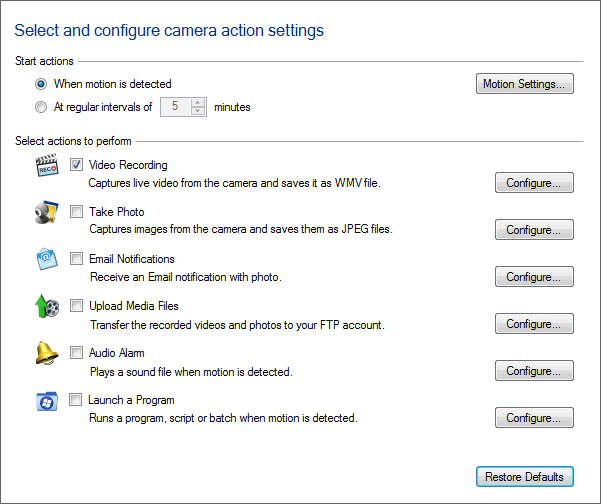
There are various actions that you can choose to be performed when an alert is triggered like start a video recording, take a sequence of photos, send email notification, sound an audio alarm, and launch a program.
Once an IP camera is added and you have configured Security Monitor Pro, you can rest assured that an effective security system is in place. A simple installation and a small investment such as this goes a long way in safeguarding people, places and things that you hold dear to your heart or consider important.