Convert Your Files to Play on a Portable Media Center
Entertainment - anywhere and everywhere! This is the driving force behind Portable Media Center devices, which are entertainment powerhouses small enough to fit in the palm of your hand. Leading manufacturers like Creative, iRiver and Samsung manufacture Portable Media Centers, running Microsoft Windows software and having storage capabilities from up to 40 GB. Portable Media Centers have small video screens (up to 4 inches [9 cm] diagonal, along with either a hard disk or flash memory to store video, audio, and still pictures. This article explains how to transfer your media files to a Portable Media Center using Digital Media Converter Pro.
How to play your favorite content on a Portable Media Center
Owners of Portable Media Center complain that there devices have plenty of space, but there is so little content available in the right format. It's like a library with no books. The Portable Media Center supports Windows Media Video (WMV) files with a resolution of 320 X 240, recorded at a bit rate less than 800 kbps. Content providers are working toward providing more content directly for Portable Media Centers, but there is still a long way to go. Until everything you want comes in the proper format, you can convert your existing video and audio files to play on Portable Media Centers.
You can watch your favorite TV program on the Portable Media Center by first recording it on a PC using a TV tuner card (or an external device). Most TV tuner cards produce MPEG or AVI files. If you are recording a TV show using the Windows Media Center PC, it produces a very large DVR - MS file. Your home videos created on digital camcorders may be in DV-AVI format. Some digital cameras create files in QuickTime format.
MPEG, AVI, DVR-MS, DV- AVI and QuickTime all need to be converted to Windows Media format to play on a Portable Media Center. You can use Digital Media Converter Pro to perform all of these conversions.
The Digital Media Converter Pro provides a simple, intuitive interface. A wide range of devices are supported for the playback of your converted media files. You can check if your device is present in the available output formats. You don't have to worry about the finer details like screen resolution or other settings.

Converting Your Media For Use On A Portable Media Center
- Start the Digital Media Converter Pro.
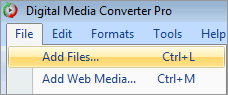
- On the File menu, click Add Files or click the toolbar button labeled Add Media. You can also use the shortcut key Ctrl+L
- Browse to the folder where the files you want to convert are located and select one or more files
- Click on Select Format >> Device Formats button.
- To convert TV shows, videos in MPEG 2 or in QuickTime to Windows Media Video, select the output device format of your choice.
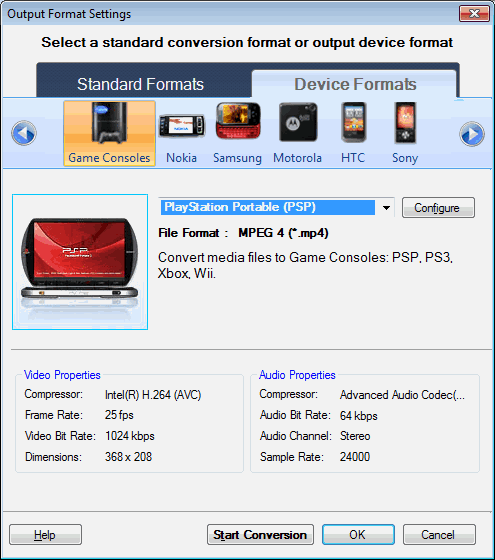
- Click on the Convert button to start the conversion process.
Digital Media Converter Pro makes your files ready to be played on your Portable Media Center instantly. Just plug your device into the PC, copy your converted files and enjoy your content.