DeskShare homepage Deutsch   Français    Español   Portuguese   
.
  Products  


Pages:
  
1.Index
2.Getting Started
3.Quick Start
4.Application Settings
5.Working with Devices
6.Auto Configuration Wizard
7.Motion/Noise Settings
 
Configuring Motion/Noise Detection
Disabling Motion or Noise Detection
Masking an Area
Starting and Stopping Monitoring
Automatically Begin Monitoring on Startup
8.Types of Alerts
9.Working with Periodically Activated Alerts
10.Remote Monitoring
11.Media Files
12.Keyboard Shortcuts
13.Event Logs
14.Resources
 
 
  Security Monitor Pro v2.42


Security Monitor Pro: Configuring Motion/Noise Detection

Configuring Motion/Noise Detection

For automatic motion and/or noise detection, you must first configure Motion Detection or Noise detection after selecting and scheduling a device.  Security Monitor Pro is equipped with an advanced algorithm that automatically monitors changes in the image and in the sound levels.  When motion or noise is detected, all selected Alerts are triggered.

To configure motion or noise detection:

  1. Select the camera by clicking on its preview window and click on the Camera Monitoring Options button or click on Tools > Camera Monitoring Options.
  2. Select the Monitoring With Alerts tab.
  3. Check the Detect Motion with Sensitivity and/or Detect Noise with Sensitivity option.
  4. Select a Sensitivity value for detecting motion and/or noise by moving the slider on a scale of 1 to 10.  The higher the number, the more sensitive the detection.
  5. Click OK.

Once you have configured the Motion/Noise Detection parameters, you should test these settings.  The best method to test these settings is to select the Sound Alarm and Start monitoring with Alerts.  When motion is detected then you will hear the alarm and an entry to this effect will be logged.

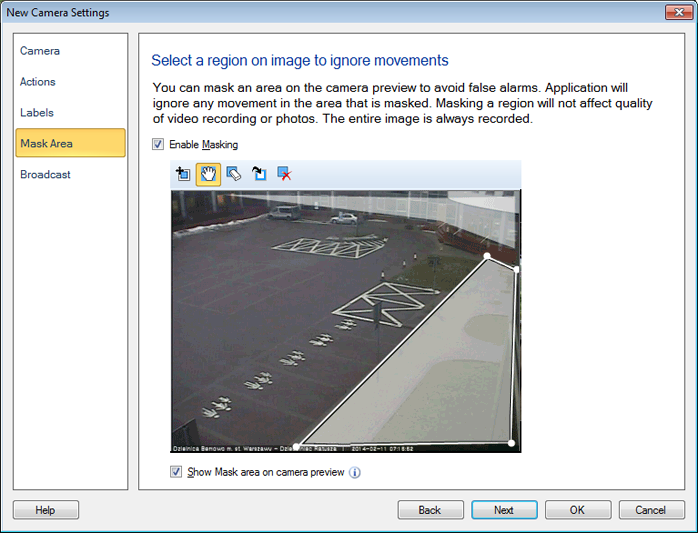
If you have a problem with many false alarms triggered by a particular cause (for instance, a window that shows a road with moving cars), you can by mask out that trouble area.

What is Motion Sensitivity?

Security Monitor Pro detects motion by comparing images received from the currently selected video capture device.  Motion detection involves computing the difference between two images.  If the difference between the compared images crosses a certain threshold value then motion is detected and the selected Alert is triggered.  The Motion Sensitivity setting represents this threshold in motion monitoring.

As is inherent with any machine based operation, motion detection is not 100% accurate.  It may ignore genuine motion at times or report motion when there is none leading to false alarms.  As sensitivity increases, Security Monitor Pro will detect the slightest motion, and as sensitivity decreases, it will detect only pronounced motion and ignore slight movements.  You may therefore think that higher the sensitivity, the better, but increased sensitivity will cause more false alarms.

To improve motion detection accuracy, it is important to select an optimum (as high as possible) motion sensitivity value while keeping the chances of false alarms to a minimum.  Some video capture devices may support Flicker Reduction and Backlight Compensation.  If you have these options, you can use them to good effect with Sensitivity.

What is Noise Sensitivity?

Security Monitor Pro detects noise that exceeds a certain volume.  The Noise Sensitivity setting represents the minimum volume that will trigger an alert.  Although noise detection is more accurate than motion detection, a 100% accuracy is still not possible.

As sensitivity increases, the volume value decreases and even the least audible noise is detected.  With lower sensitivity values, louder noise is required to trigger an Alert.  Even though noise detection is less susceptible to false alarms, there can still be some aberrations.  Therefore to gain high noise detection accuracy, it is important to select an optimum (as high as possible) noise sensitivity value while keeping the chances of false alarms to a minimum.

Copyright © DeskShare Incorporated. All rights reserved.