|
Managing your Cameras
In Manage Camera dialog, you can view the status of each camera you have added. You can easily manage multiple cameras by using options like Add, Edit and Remove. To open the Manage Camera dialog, click Camera >> Manage Cameras.
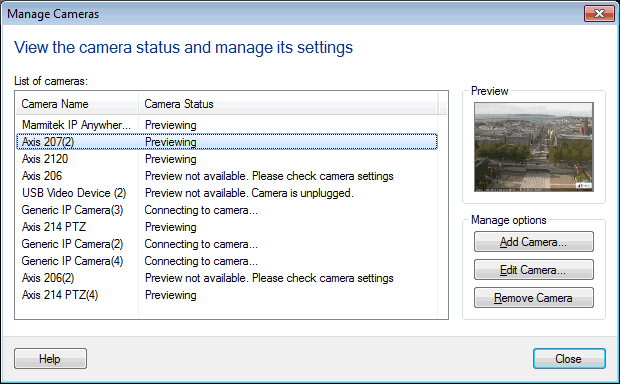
Camera List: Displays all the cameras added in Security Monitor Pro, along with the name and its current status. These cameras are listed in same sequence, as they were added to Security Monitor Pro. Status column shows the current state of each camera. For example, Previewing, Connecting or Connection Failed. When you select a camera, the Preview control will be updated, according to the camera status. For example, if the selected camera is previewing then its live video will be shown in the Preview control.
Manage Options:
- Add Camera: Select this option to add a new camera.
- Edit Camera: If the camera is not previewing or you want to update camera settings then select it and click Edit Camera option. If you would like to use a different camera, select a different Camera Brand and Model. Make sure to update the IP address and Port number for the new camera. You can also change the Video Resolution and camera Display Name. Need to change the angle of your camera preview? Check Rotate video by option and adjust the angle of your camera preview. Once your changes are completed, click OK.
- Remove Camera: To delete a camera from application, select it and click Remove Camera or press Delete key from keyboard.
|