View FTP Upload Status
You can see the Upload Status of video and photo files that are created when alerts like Video Recording and Take Photos are triggered periodically or due to Motion Detection.
To see the status of cameras which are uploading, click View>> Upload Status.
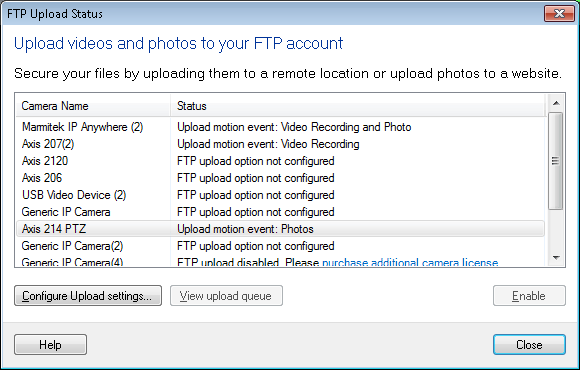
In above dialog, all the cameras added in application are listed. You can view the upload status of individual cameras. If you want to configure or update FTP settings for a camera then select that camera and click on Configure Upload settings button. Disable button will toggle with Enable. Clicking on Disable button will uncheck Upload Media files option from Actions tab. When you select a camera and click on Enable button then Upload Media files option will be checked. Application will start uploading the media files when monitoring actions are started.
View FTP Upload Queue
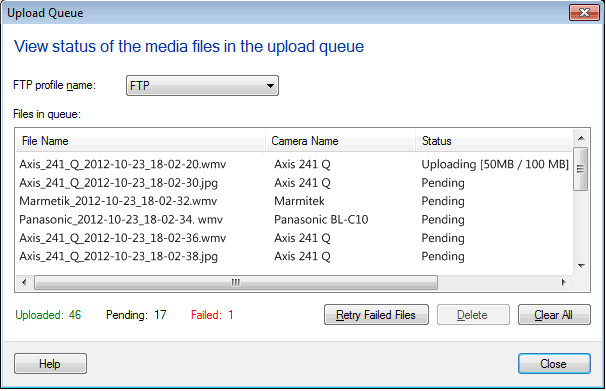
In the FTP Upload Queue dialog, you can view the Name of the queued files along with their Camera Name and Status. The upload status could be Queued for Upload, Uploaded or Failed. You will also have a summary in the form of number of files that are Uploaded, Queued for Upload, Failed and Total Files.
To see the status of uploading files, click FTP Upload icon on toolbar and select View upload queue.
|