Configuring Photo Capture Settings
You can have sequence of photos when an alert is triggered.
To configure photo settings, click Camera >> Manage Cameras >> Edit Camera >> Actions >> Configure button of Take Photo action 
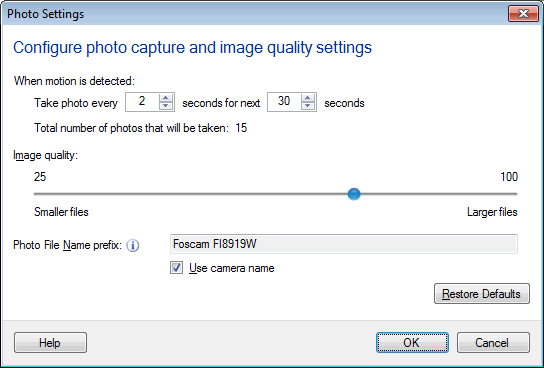
Photo Settings
When an event occurs, you may want to take photos of the event. You can take multiple photos as the event is happening.
The values indicate how often a new image should be captured from the selected camera when motion occurs. These settings decide the number of photos to be taken when an alert is triggered.
Total number of Photo taken

Total number of photos taken=m/n.
For License Plate Detector, photos will be captured whenever license plate is detected.
JPEG Quality:
Photos are saved as JPEG images. You can adjust the quality using the slider. Low quality produces small JPEG file sizes.
The Take Photos Action will be performed when motion is detected or after a specified time interval, depending upon how the camera is configured for Triggering Alerts. In addition to this, you can take photos manually by clicking Take Photo control button.
Photo File Name prefix:
Security Monitor Pro will create a JPEG file, with the name provided in Prefix field. You should pick a meaningful prefix that will help you identify the files, like "MainHall" or "DisplayCase". By default, the Use camera name option is checked. Date and Time will be appended to the file name(s) automatically. This can make the photos more useful as an evidence.
|