|
Understanding the User Interface
My Screen Recorder Interface is user-friendly and provides quick access to all the important functions.
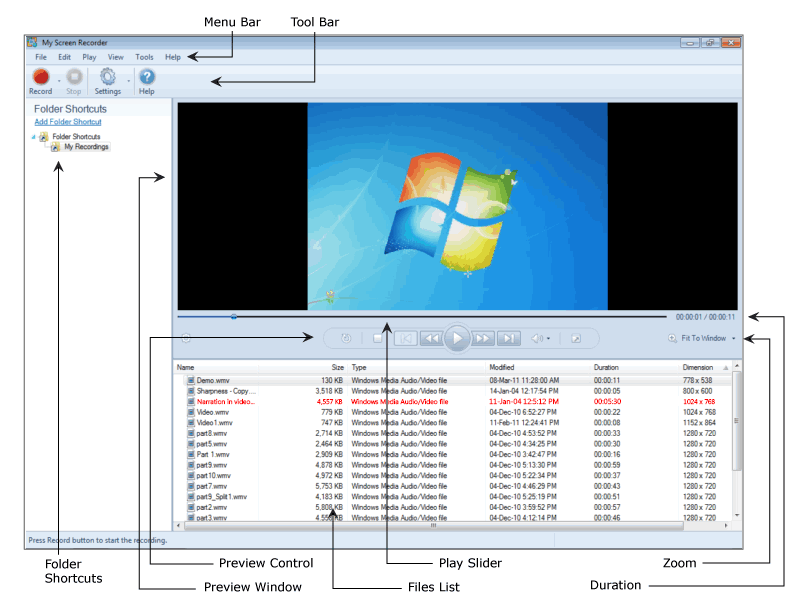
The following are the components in the application user interface:
- The Menu Bar contains all the available features of the application.
- The most important and often-used features are present in the Toolbar so that you can easily access them.
- Folder Shortcuts refer to local folders on your PC. Every Folder Shortcut is mapped to a folder on your computer where all the screen recordings are organized.
- The screen recordings are saved as WMV or AVI files and are displayed in the File List.
- You can play your screen recording by double clicking it in the File List, and view it in the Preview Window so that you know what it is going to look and sound like.
- By shifting the position of the Play Slider, you can view the desired part of your recording in the Preview Window in the playback.
- The Preview Control allows you to manage the playback of your screen recordings. You can Play/Pause, Stop, Rewind, and Forward the recording. The media files can be viewed in different magnifications by selecting the preview size. You can adjust the Audio Volume to the desired level.
- Duration denotes the time of the current position of Play Slider, and total time required to playback your screen recording.
- By default, the preview is set to the option 100%. When other Zoom options are selected, scroll bars can be used to view different portions of your recording.
|