DeskShare homepage Deutsch   Français    Español   Portuguese   
.
  Resources  
.
Articles
Newsletter
Tutorials and Manuals
Special Offers
 
 Articles
1. How to Make Good Screen Recordings
2. Recording a Region of Your Desktop Screen
2. Convert PowerPoint to AVI
   
 Newsletter Subscription
Get the inside track on all the hot news regarding DeskShare products, new releases, special promotions and discounts.
Subscribe to our DeskShare News.
  My Screen Recorder v2.65
   
   
  Recording a  Region of Your Desktop Screen
   
     
  Whether you're making a training video, a promotional recording, or a movie to include in a PowerPoint presentation, your screen recording has a point to make.  If that point is in only one part of the screen, recording the entire screen has two major effects:  
     
 
  1. It makes the video less effective, by adding distractions, and
  2. It makes the final movie file bigger, increasing both the time required in downloading and playing it, and the cost of Internet hosting for the server (both for storage and bandwidth).
 
  My Screen Recorder lets you choose to record only a part of the Windows desktop.  Using this feature, you can produce files that are both smaller and communicate more powerfully.  


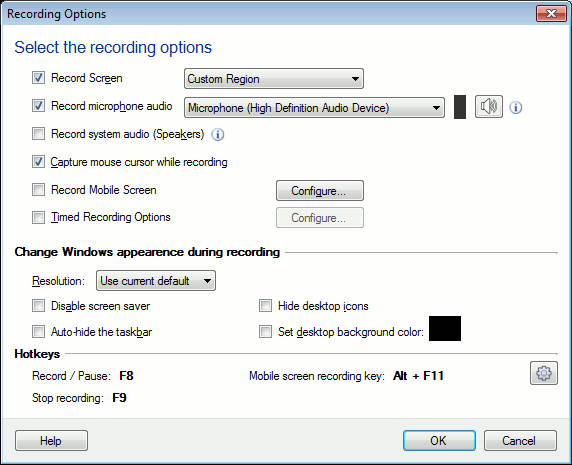
  To choose how much of the screen to record, use the Region feature.  Your choices are Full Desktop, Fixed Dimensions, and Rectangle.  
     
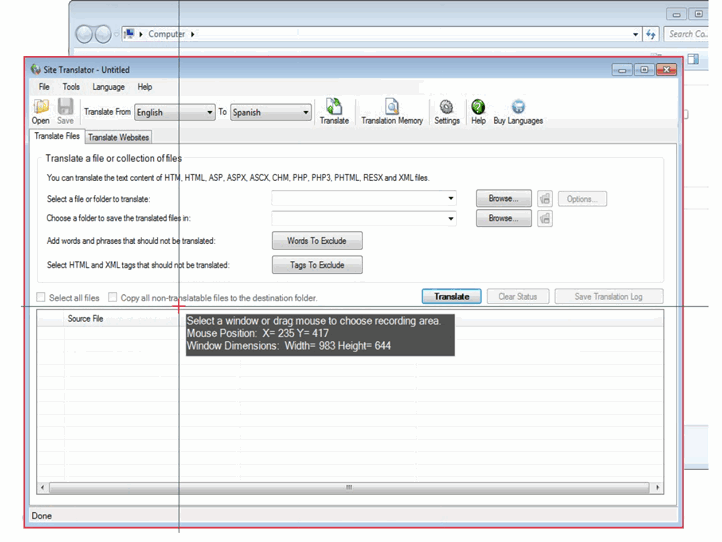
  Full Desktop records everything that happens on the screen.  Both Fixed Dimensions and Rectangle record only a part of what's on the screen.  In fact, both record rectangles.  The only difference is that a Fixed Dimensions lets you set the size and position of the rectangle in pixels.  In the Rectangle selection you select the recorded area by dragging the mouse.  
     
  Which should you use?  Well, if you need to record the activity in several windows, or to show complex procedures that can only be illustrated using a large window, it's probably a good idea to record the Full Desktop.  If you're going to illustrate points that can fit into a smaller space, for instance which options to select on a particular dialog box, reducing the area recorded offers the advantages of greater focus and smaller file size.  
     
  To choose between Fixed Dimensions and Rectangle, consider the final use of the recording.  It's easier to trace a rectangle around odd shapes with the mouse than to guess their size in pixels.  On the other hand, if you're going to distribute the video on a DVD or VHS tape, or combine it with video from a digital camera, it will greatly simplify things if it's recorded in a standard pixel size.  For instance, many digital cameras produce video in a frame size of 640x480 pixels.  If you use Fixed Dimensions to record video at that same size, combining the recording with the digital video will be simple and produce good-quality output.  
     
  Let's do an actual recording.  I'll record the same procedure in Microsoft® Word, first in Full Desktop and then in Fixed Dimensions mode.  
     
  My screen resolution is 1024x768 pixels during this recording, so that will be the size of the movie I'll make in the first case (Full Desktop).  This one minute video takes up 4.7 megabytes of disk space.  
     
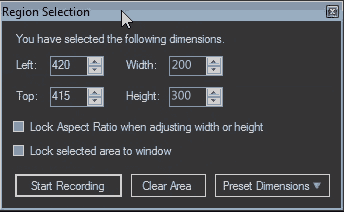
  Now I record the same video using Fixed Dimensions.  I choose to create a 640x480 rectangle.  If I checked Fixed starting point (see the image given below) I could type in a starting point for the rectangle.  Why would a start point specified by two numbers be an advantage?  Well, what if you were going to record the movie in two parts, or record two "takes" of the same movie, and you wanted them to look exactly the same?  By using a numeric start point, you can be sure the Fixed Dimensions area is in the same place.  This would be very difficult to do if you placed the rectangle by dragging the mouse.  In my case, since I'm only doing one take here, I will go ahead and place the rectangle by using the mouse.  


  In order to make everything fit, I simply resized the Word window.  Recording the same operations in this smaller space, the one minute video takes up only 2.6 megabytes.  Why does it take lesser drive space?  Well, each frame of a 1024x768 screen recording has 786,432 pixels.  Each frame of a 640x480 movie has only 307,200 pixels.  Since the recordings I made have the same number of frames, the video with smaller dimensions takes much less drive space.  If you usually have your screen resolution set even higher (for instance, 1280x960), the difference would be even greater.  
     
  This illustration shows how much more is recorded in each frame of the Full Desktop movie than in a smaller rectangle.  (Both are scaled down by the same percentage.)  


  If you chose to upgrade to My Screen Recorder Pro, you would have two other options to produce smaller, more efficient files.  My Screen Recorder Pro lets you automatically change screen resolution during recording.  Also, you can record the contents of a single window only.  My Screen Recorder Pro has other advanced features, which you can easily identify by looking at the comparison chart.  
     
  Every screen recording should be designed to convey a particular point.  By focusing the viewer's attention on a smaller area, recording from a region can make your movies more effective and powerful, while creating smaller files that are easier for people to work with and watch.  The fixed-size areas you can record using Fixed Dimensions also make it easier to combine your screen recordings with video from other sources.  


PRODUCTS | PURCHASE | DOWNLOADS | SUPPORT | RESOURCES | PARTNERS | ABOUT DESKSHARE | CONTACT US
deskshare logo  Copyright DeskShare Incorporated. All rights reserved. Privacy Policy