DeskShare homepage Deutsch   Français    Español   Portuguese   
.
  Resources  
.
Articles
Newsletter
Tutorials and Manuals
Special Offers
 
 Articles
1. Reducing Video File Sizes
2. Understanding VCD and DVD Formats
3. VCD, SVCD and DVD - Quality, Capacity and Media Types
4. Understanding Compression in AVI
5. Convert Your Digital Camera QuickTime Movies to WMV or AVI
6. Converting DVR-MS Files Created by XP Media Center PCs
7. Working with DVDs and VOB Files
8. Convert your files to play on Portable Media Center
9. Converting Between PAL and NTSC
10. Converting your video files to play on the Sony PSP
11. Converting your video files to play on the Apple iPod
12. Turn Off Hardware Acceleration to Improve Video Quality
13. Troubleshooting Compatibility Issues
   
 Newsletter Subscription
Get the inside track on all the hot news regarding DeskShare products, new releases, special promotions and discounts.
Subscribe to our DeskShare News.
Digital Media Converter v2.78
 
 
Convert Your Digital Camera QuickTime Movies to WMV or AVI
 
     
While previously there was a clear distinction between a digital camcorder and a digital camera (to take still photos only), the line seems to have blurred significantly recently.  The new generation of digital cameras from leading manufacturers not only take still photos with amazing clarity, they also record high-quality video.  
   
However, the video format in which these high performance devices record can cause issues.  While most digital cameras record in QuickTime format (MOV), some record in MPEG 4 (MP4).  This causes compatibility issues because neither QuickTime nor MPEG 4 plays natively on a Windows PC.  You need to install the QuickTime Player to make either of these formats play on Windows PC.  So, if you intend to distribute a video to a wider audience, it is a good idea to convert it to a Windows standard format like AVI or WMV.  
   
If you have a digital camera that records video in QuickTime, it is a good idea to convert your videos into AVI or WMV format using Digital Media Converter, to AVI or WMV.  For instance, if you intend to distribute via e-mail or the web, then the small, yet high-quality Windows Media Format is the format for you.  It plays in Windows Media Player, which comes standard on all Windows PCs.  AVI can also play in Windows Media Player and is a good choice if you plan to edit your videos using editing software like the popular Video Edit Magic.  
 
  Converting Your QuickTime Files
Most digital cameras have a USB connection.  So you can easily transfer video files from the camera to your PC.  
 
Make sure you have QuickTime Player installed on your PC.  QuickTime Player is available free from Apple and can be downloaded from the following URL: http://www.apple.com/quicktime/products/qt/.  
   
  Apple sells a Pro version, which is not required—the standard version will work fine.  When installing the standard version choose the full installation.  Now it's time for the actual conversion.  
 
1. Start Digital Media Converter.
2. On the File Menu, click on Add files.  Navigate to your video files,  select one or as many as you want to convert, and click OK.
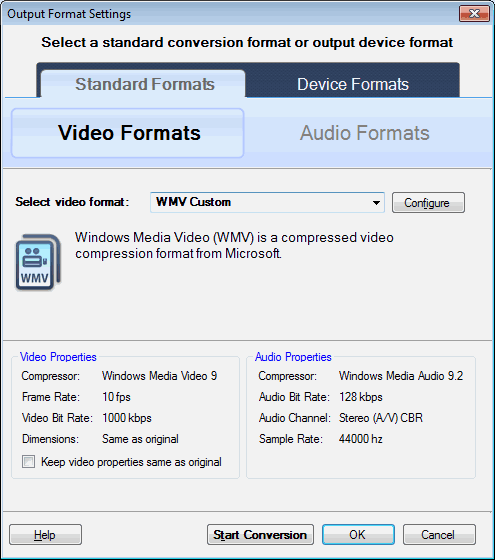
3. On the File Menu, select Convert to, and then AVI (if you intend to edit the video) or WMV (for easy distribution).
4. On the File Menu, click on Start Conversion.
 
  It is as easy as that!  
     
  If you are converting to AVI there are several other settings you can change, which are described in detail in a separate article, Understanding Compression in AVI.  
     
 
PRODUCTS | PURCHASE | DOWNLOADS | SUPPORT | RESOURCES | PARTNERS | ABOUT DESKSHARE | CONTACT US
deskshare logo  Copyright DeskShare Incorporated. All rights reserved. Privacy Policy