DeskShare homepage Deutsch   Français    Español   Portuguese   
.
  Resources  
.
Articles
Newsletter
Tutorials and Manuals
Special Offers
 
 Articles
1. Creating Screen Recordings For Web Streaming
2. Reducing the File Size of Screen Recordings
3. Distributing Screen Recordings
4. Record Using Multiple Monitors
5. Record Streaming Audio
6. Record Internet TV and Internet Radio Shows
7. Automate Screen Recordings
8. Streamline Your Work with Auto Tasks
9. Save the Last Minutes
10. Cutting and Splicing Screen Recordings
11. Command Line Parameters
12. Distribute Screen Recordings as Executables
13. Draw on Screen
14. Adding Mouse Effects
   
 Newsletter Subscription
Get the inside track on all the hot news regarding DeskShare products, new releases, special promotions and discounts.
Subscribe to our DeskShare News.
  My Screen Recorder Pro v2.67
   
   
  Save Time and Streamline Your Work with Auto Tasks
   
     
  If you use My Screen Recorder Pro regularly, you probably end up repeating the same actions over and over.  For instance, if your job includes making tutorials for computer software, your routine might be:
  1. Write the narration
  2. Record the tutorial
  3. Convert the tutorial to Windows Media format (WMV)
  4. Upload the new WMV file to your company’s intranet server
 
  Using Auto Tasks, you can simplify your job by making two of those steps completely automatic.  My Screen Recorder Pro can take care of the conversion and uploading steps for you, which leaves you more time and attention for the rest of your job.  
     
  You can set up Auto Tasks in only a few minutes, and that will be the last few minutes you spend worrying about conversion and uploading.  Here are the steps:  
     
  Automatic Conversion  
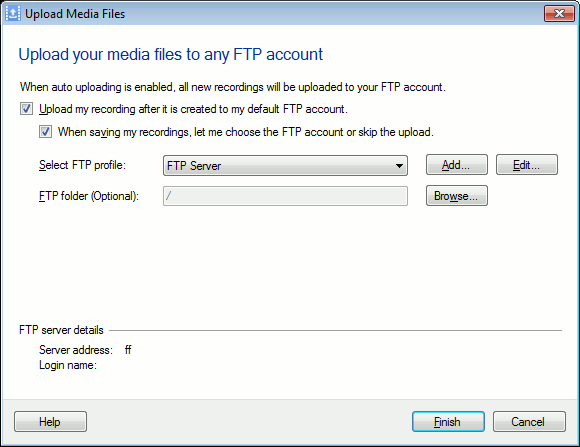
  To enable Automatic Conversion, first click the Auto Tasks button in the tool bar, or open the Tools menu and click Settings, then switch to the Auto Tasks tab.  You’ll see the window in Figure 1.  


                                              Figure 1


  The first step is to check Enable automatic conversion.  Next, you select a folder to store your converted movies in.  The Output folder drop-down list shows all your existing Folder Shortcuts.  If you prefer, you can create a New Folder Shortcut specifically to store your converted files in.  
     
  Next you can select the Output format.  The choices are AVI, SWF, and WMV. WMV is the most commonly-used choice, because it almost always produces the smallest files (for a given quality level).  The Properties button lets you select a Windows Media Profile (if you choose WMV).  Which Profile to use for the conversion depends on your requirements.  For instance, if the recordings will be watched from a streaming server over a high-bandwidth connection, you might select “Screen and Voice (200 kpbs)”.  
     
  Finally, you can choose Resize Options by clicking on Configure.  You can reduce the width and height of the converted video, which will make smaller files, and also make it easier to view the files on computers with lower-resolution video cards and monitors.  Lowering resolution too much can, however, cause the video to lose some detail.  Test this setting before making a final decision about using it.  
     
  Automatic Publishing  
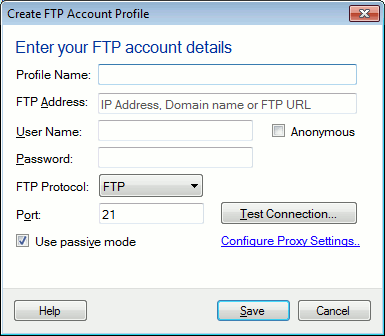
  If your work is published to an Internet server, you can set My Screen Recorder Pro to upload automatically every time you make a recording.  On the Auto Tasks window, check the Enable automatic publishing option.  Once that’s done, use the Configure button to specify the FTP Address of the server, along with your Login Name and Password.  Optionally, you can also specify a Remote Folder, which tells My Screen Recorder Pro which folder on the server to put uploaded recordings in.  If this FTP server doesn’t require passwords to upload files, then check Anonymous login (and don’t type a password).  


                                                     Figure 2


  After entering the server information, it’s a good idea to click Test FTP Connection to make sure the username and password are correct.  
     
  Generally, you can leave Use Passive Mode for logging in checked.  Only change this if your network manager advises you to, or if passive mode isn’t working.  Similarly, you should only change the Port if you know the server uses a non-standard port for FTP connections.  
     
  If your network uses a SOCKS proxy server, you can enter the necessary configuration information here by clicking Configure Proxy Server.  Consult your network manager if you need to enter proxy information.  
     
  Confirmation  
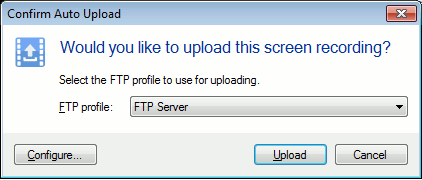
  If you only want to convert and/or publish some of your recordings, check the After recording confirm Auto Tasks checkbox.  If you do this, whenever you finish recording, My Screen Recorder Pro will ask you if you want to carry out Auto Tasks on this particular AVI file.  
     
     
                                                 Figure 3  
     
  With My Screen Recorder Pro’s Auto Tasks, a few minutes of setup time can save you hours of repetitive work, by having the program automatically convert and publish screen recordings.  


PRODUCTS | PURCHASE | DOWNLOADS | SUPPORT | RESOURCES | PARTNERS | ABOUT DESKSHARE | CONTACT US
deskshare logo  Copyright DeskShare Incorporated. All rights reserved. Privacy Policy