Setting up a PC WebCam Security System
Times have changed. The crime graph is on the rise with a sharp increase being reported in the number of thefts, burglaries and break-ins. You can remain a sitting duck, or choose to fight back. Using a surveillance system to monitor things while you are away is a possible solution. While not everyone can invest in closed circuit cameras, a PC based video surveillance system is an effective tool that anyone with a computer and web camera can install. You can build your own webcam security system, instead of trying to buy it.
A PC based video monitoring system is also ideal for monitoring your pets at home; or the front door, garage and bedroom while you are away at work or on a vacation. All you need is your PC, a webcam, and advanced surveillance software like the popular WebCam Monitor. With this combination, you can keep an eye on things, all the time and effortlessly.
WebCam Monitor detects motion. You can configure automatic alerts when motion is detected on your camera. The program notifies you instantly via email along with a snapshot. It can also be configured to record a video of the activity, take photos, or sound an alarm. If you simply want to monitor things as they happen, you can do it from any location with a web browser and an Internet connection.
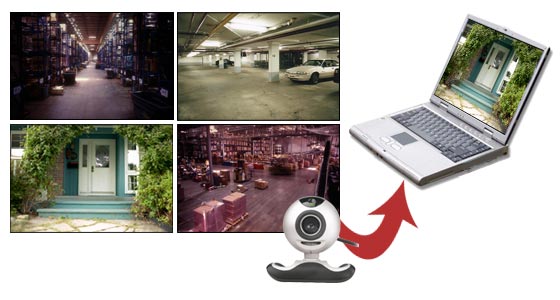
Setting up the camera
- The first step is to carry out a threat analysis of your assets and identify the ones which are most vulnerable or valuable. Then take a quick tour of the premises and spot the entry and exit points.
- Connect a webcam to your PC, and place it so that it can view the points you had identified. If you intend to monitor your children or pets live over the Internet, then it is a good idea to mount the webcam at a height that gives you a panoramic view of the room.
- Carry out a few dry test runs to be sure that the webcam is placed perfectly. You can do this by using the WebCam monitor Preview window.
- Start WebCam Monitor. Select your WebCam in the Add Camera dialog, under the File menu. When the camera is connected, you can adjust your Webcam’s position till you get the perfect feed.
Configuring WebCam Monitor
Once the physical setup is ready, you can start configuring the software using Quick Access. The Quick Access panel configures different actions, quickly and easily. This panel consists of six of the most common actions. All you need to do is select one of these and the application is configured!
Motion Triggered/ Periodically Activated Alerts
Apart from using the pre-defined settings in the Quick Access, you can right click on camera preview and select Edit camera >> Actions and configure individual alerts and specify when to trigger them. You can either choose to be alerted periodically or when motion is detected. You can also specify the type of alert you want, i.e. email with a photo, sound an alarm, or record video of the activity (or all three).
To improve motion detection accuracy, it is important to select the highest possible motion sensitivity value that keeps false alarms to a minimum. Too low a sensitivity can cause significant events to be missed, but too high a value can cause many false alarms.
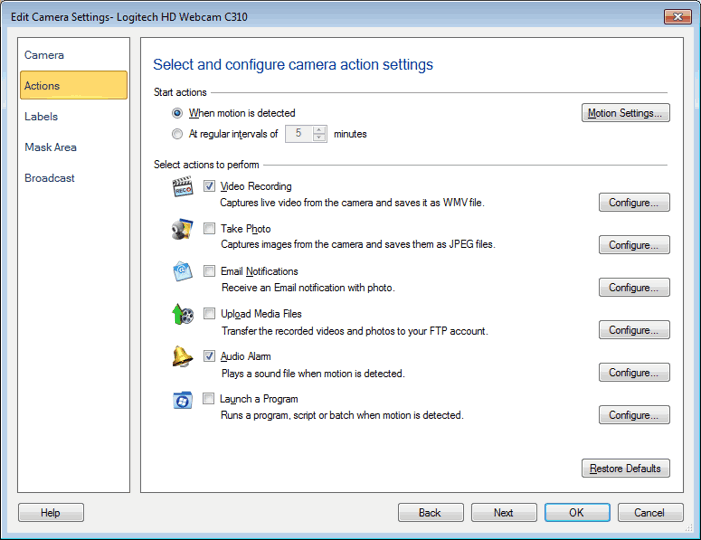
If there is continuous motion, such as people moving, then periodically activated alerts can be used. Select the At Regular Intervals option. For example, if you are monitoring your child, you can have photos emailed to you every ten minutes, letting you be sure that everything is fine. You can also periodically upload the images to your web site for remote monitoring. Specify the time in minutes.
Now check the alerts to use from the Select actions to perform option. The Configure button for each alert can be used to change its settings to suit your monitoring requirements.
The safety of your near and dear ones and your belongings should always be a top priority. The advanced features of WebCam Monitor can provide you with effective surveillance ability, at virtually no extra hardware cost. Setup PC based video monitoring software using WebCam Monitor to enjoy peace of mind.